Free layout: place report visuals anywhere
By default a report page is a grid: visuals flow in rows across twelve columns, so a page always lines up. When you want a canvas like Power BI's, where a visual sits exactly where you drop it and can overlap another, switch the page to Free layout.
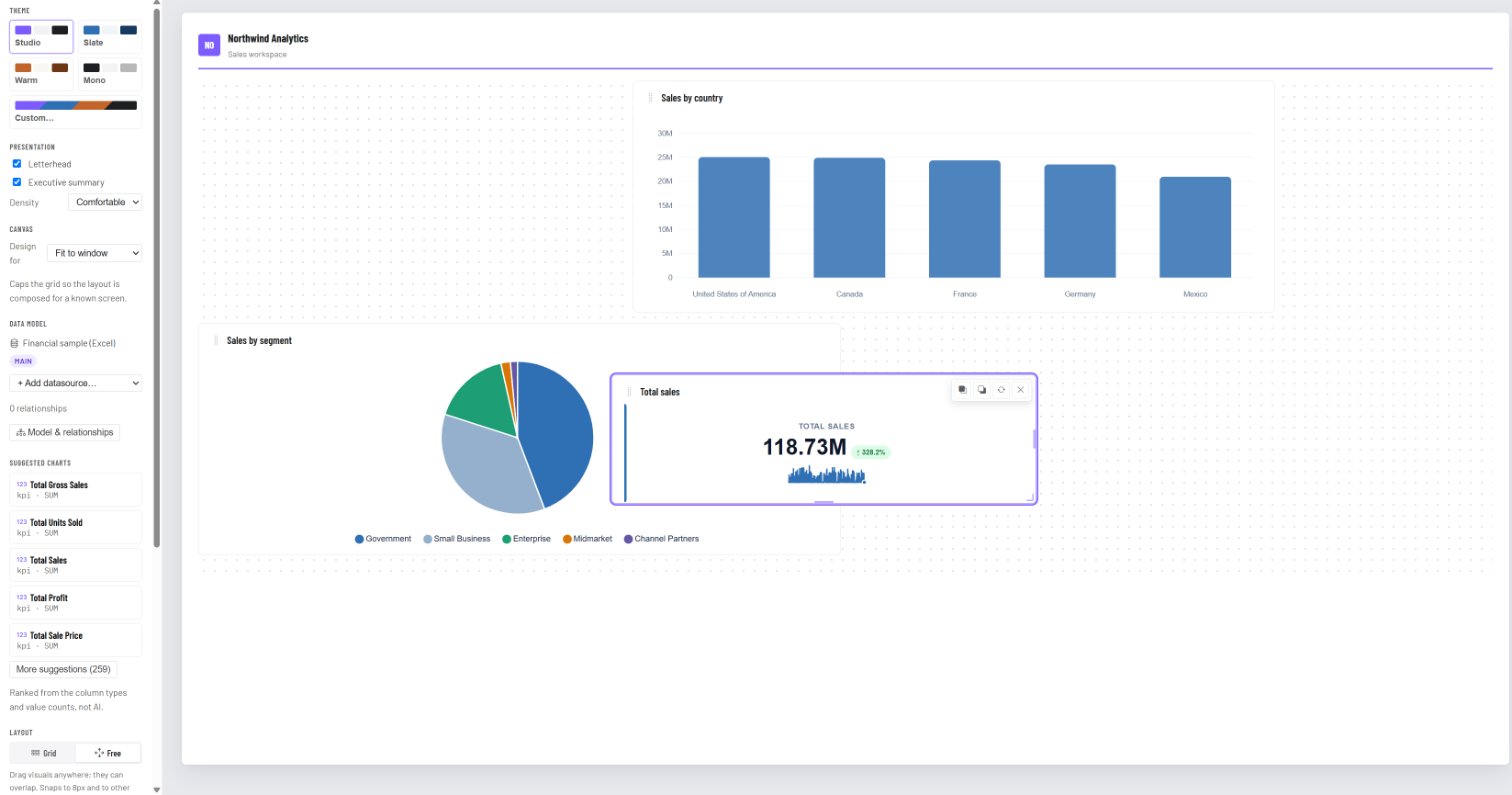
Turn it on
- Open the report in Edit.
- In the left rail under Layout, choose Free.
The page keeps exactly the look it had: each visual's position on screen becomes its place on the canvas. Choose Grid to go back; visuals are put in reading order again (top to bottom, left to right).
Layout is set per page, so one page can be a free canvas and the next a tidy grid.
Move, size and stack
- Drag a visual to move it. It snaps to an 8-pixel grid and to the edges and centres of the page and of other visuals, with a guide line where it snaps. Hold Alt to place it freely.
- Arrow keys nudge the selected visual.
- Resize from the right edge, the bottom edge or the bottom-right corner.
- Visuals can overlap. Use Bring to front and Send to back on the visual (or Ctrl+] and Ctrl+[) to choose which one is on top.
On other screens
Positions are kept in proportion to the page width, so a layout made on a wide screen keeps its shape on a smaller one. On a phone (narrower than 640 pixels) the visuals are shown one under another in reading order, because a free canvas can't be read at that size. Readers see the same layout when they open the report in View mode.