The report screen, panel by panel
One screen holds both reading and building. View is what your audience sees;
Edit adds the tools. Switch with the toggle at the top right — nothing moves
when you do, because it is the same page either way.
If you only have viewing rights the toggle is not there. Ask a workspace admin
for editor access.
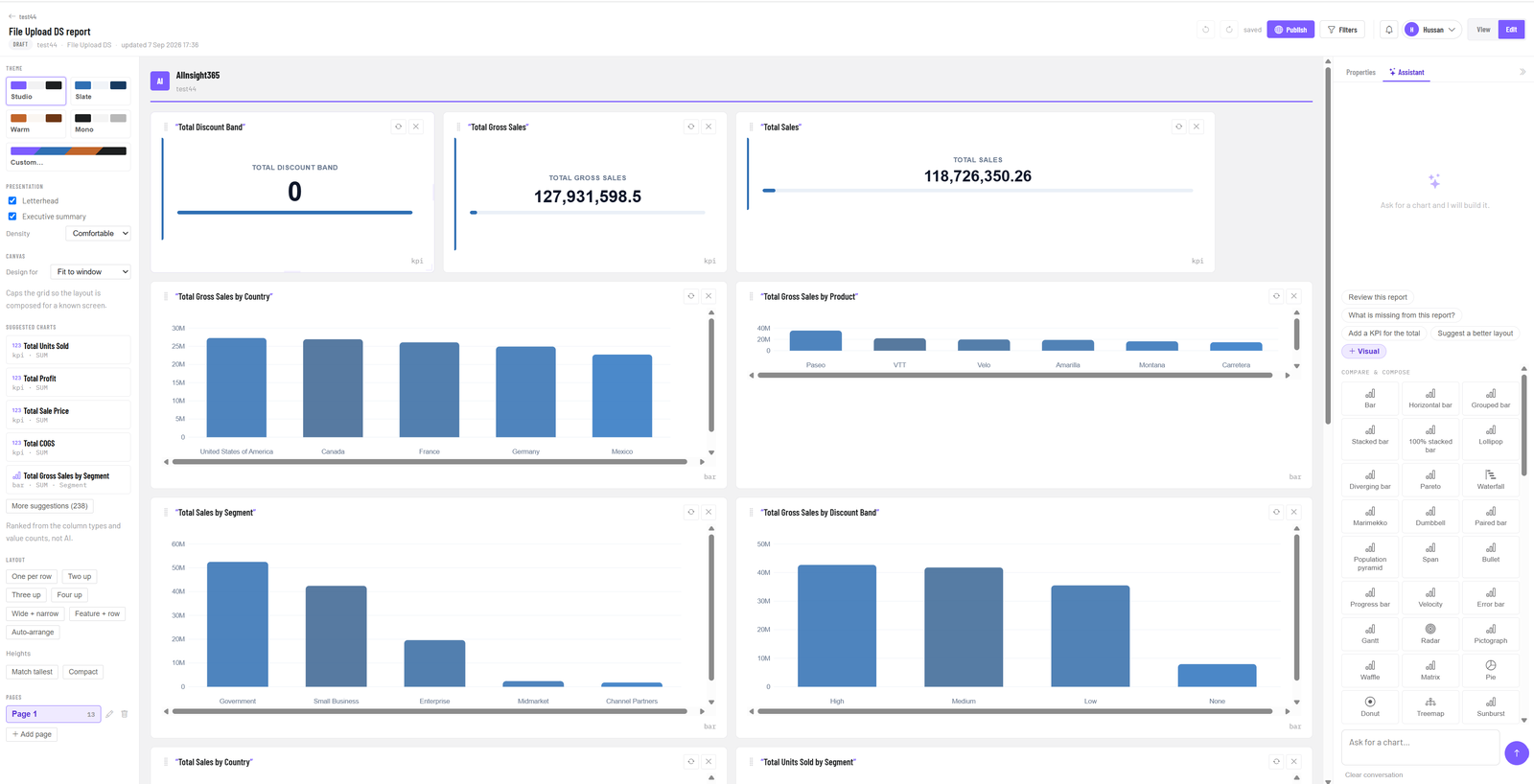
Edit mode, panel by panel.
The header
Left to right: a named link back to the workspace, the report name (click it in
Edit to rename in place), and underneath, the status, workspace, datasource and
when it was last updated.
On the right:
- Undo / redo — or
Ctrl+ZandCtrl+Y. - saved — your work writes itself as you go. When this says saved, it is
safe to close the tab. - Publish — the one deliberate act. Until you publish, only people with
workspace access can open the report. - Filters — report-wide filters, available in both modes.
- Notifications, your account menu, and the View / Edit toggle.
Left panel — design (Edit only)
Theme — Studio, Slate, Warm, Mono, or Custom. One click restyles every
chart on the page.
Presentation
- Letterhead — puts your organisation and workspace at the top, so an
exported report looks like it came from you. - Executive summary — an AI-written opening paragraph describing what the
report shows. - Density — comfortable or compact.
Canvas → Design for — compose for a known screen rather than whatever window
you happen to have open: fit to window, print/A4, laptop, HD, or 4K. It caps the
grid so the layout you approve is the layout your reader gets.
Suggested charts — see Let the AI build the chart.
Layout — rearrange the whole page in one click: One per row, Two up,
Three up, Four up, Wide + narrow, Feature + row, or Auto-arrange.
Under Heights: Match tallest or Compact.
Pages — a long report splits into named pages. The number beside each page
is how many blocks it holds. + Add page adds another.
The middle — your report
Blocks sit on a tidy grid and line up on their own; there is nothing to nudge
into position. Drag a block's edge to resize it, or set a width of a quarter, a
third, a half, two-thirds or full.
Each block carries small controls in its corner — refresh its data, or remove it.
Click a block's title to rename it.
Right panel — Properties and Assistant
Two tabs. Properties appears in Edit when a block is selected, in four short
tabs:
| Tab | What you set |
|---|---|
| Data | Which fields go where — axis, value, legend — plus grouping, totals and row limit. |
| Chart | The visual type. Swap a bar for a line without rebuilding anything. |
| Format | Colours, labels, legend, number formatting. |
| Block | Width, height, position. |
Assistant is available in both modes, and does different work in each. In
Edit it builds and critiques. In View it answers questions about what is on the
page — it reads the live values, so summarise this report comes back with real
numbers rather than a description of the layout. Suggested questions sit above
the box: Summarise this report, What are the key trends?, Explain the
largest values, Compare the top categories.
Collapse the panel with the chevron when you want the full width, and bring it
back the same way.
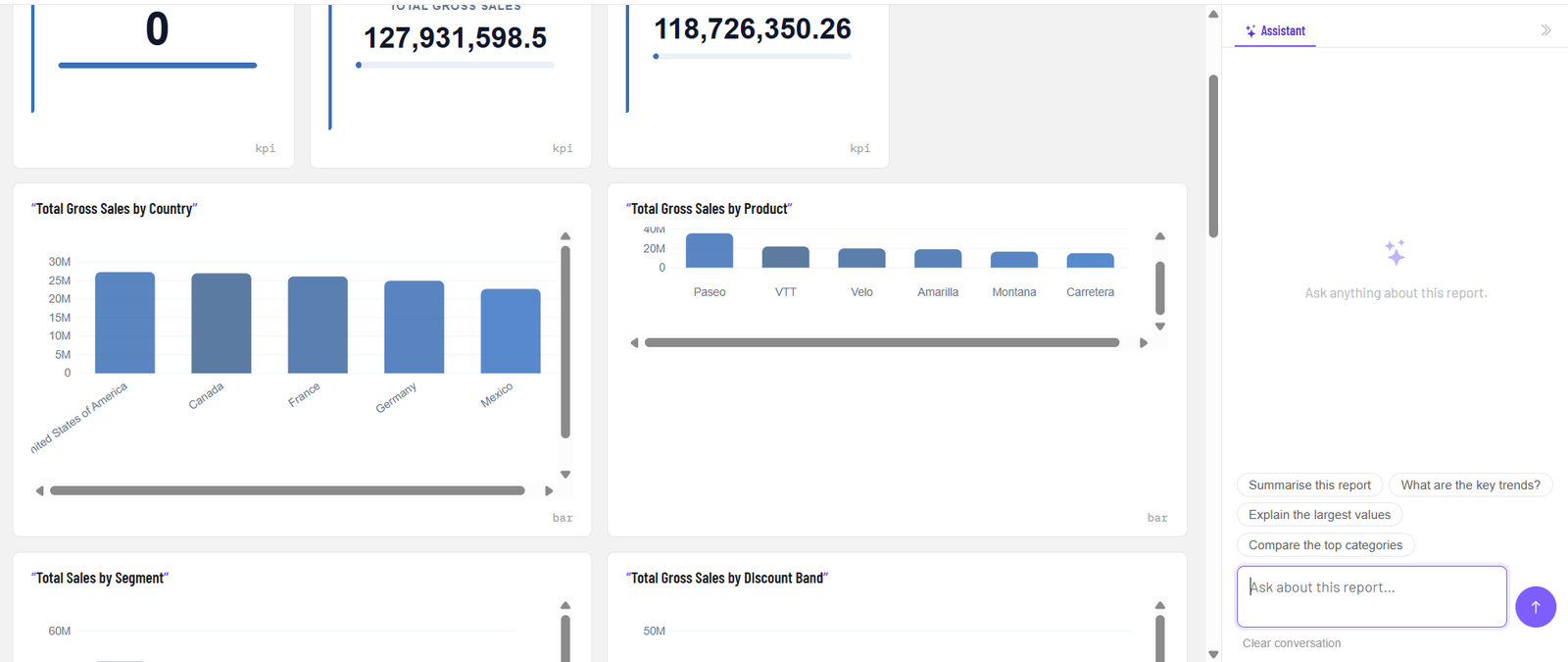
View mode: the report as your audience sees it, with the assistant ready to answer questions about what is on the page.
Reading a report
In View mode:
- Filters set the scope before you read — a region, a product, a date range.
- Clicking a bar or a slice cross-filters everything else on the page. Click
again to clear. Filters are for arriving somewhere; clicking is for wandering
around once you are there. - Refresh pulls the latest figures without reloading the browser.
- Snapshots are frozen copies of the report as it stood on a date, so you can
compare this month against last. - Export gives you PDF (paginated, branded, with the AI narrative),
PowerPoint (a slide per block), CSV (raw rows per block), or a Power BI project.
Related: Let the AI build the chart ·
Filter a report ·
Email a report on a schedule ·
Embed a report