Let the AI build the chart
You no longer pick a chart type and then work out how to feed it. Start from the
question or the fields, and the product proposes the visual.
This is the biggest change in the new report screen. The old way round — choose
one of seventy-odd chart types, then bind a column to each of seventeen settings,
then find out whether the result says anything — asked you to be a chart designer
before you were allowed to be an analyst. It is gone.
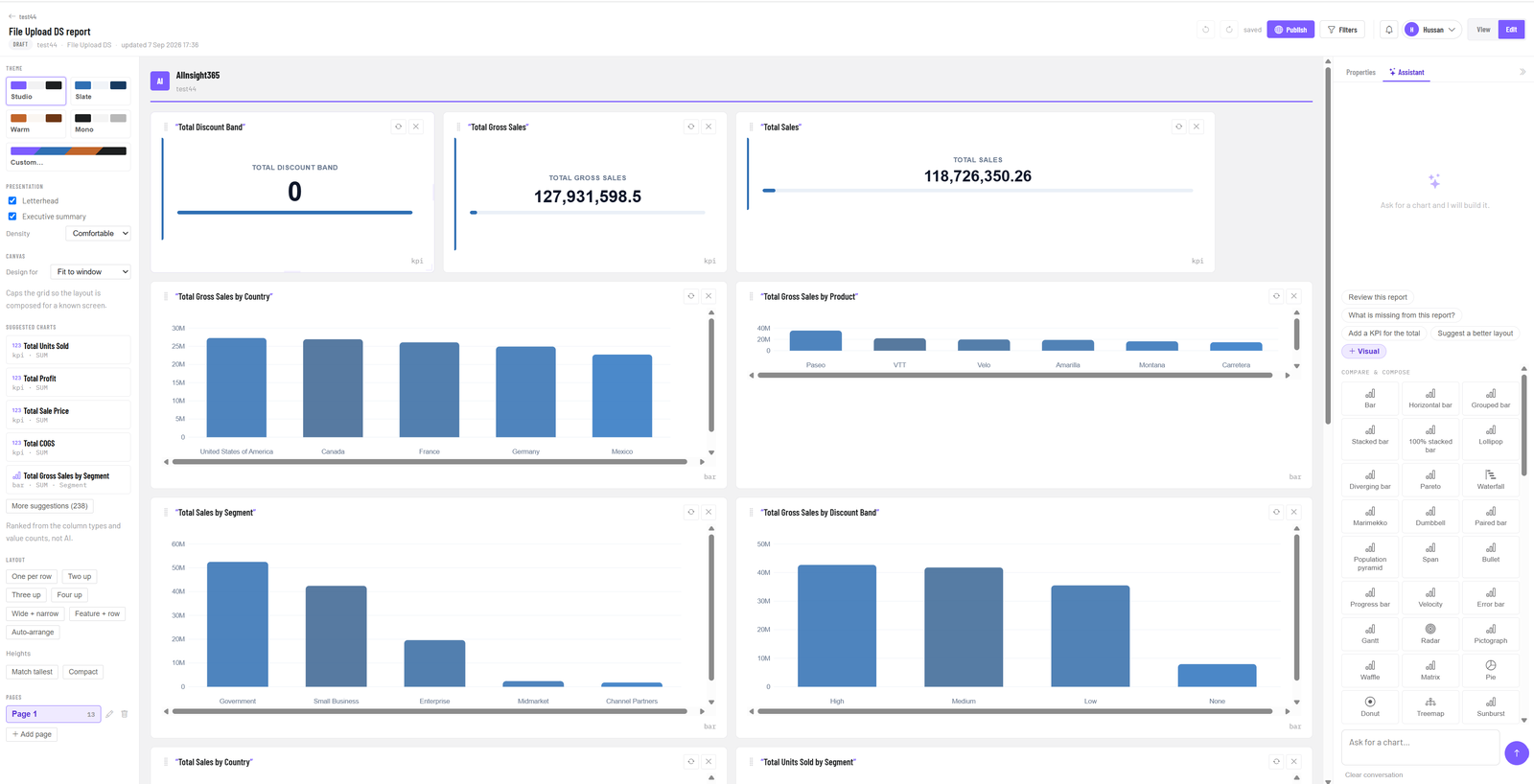
Edit mode: Suggested charts on the left, ranked from your data; the Assistant and the + Visual library on the right.
Three ways to add a block, all of them AI-assisted
1. Suggested charts
Open Edit and the left panel lists Suggested charts for your data. Each
one names the visual, the fields it would use and how it would summarise them —
Total Gross Sales by Segment · bar · SUM · Segment. Click it and the block
appears, already bound.
The list is ranked from your actual column types and value counts, not guessed.
A single number becomes a KPI; one measure against a low-variety category becomes
a bar; anything with a date becomes a line. More suggestions opens the full
ranked list — there are usually a few hundred.
2. Ask the assistant
The Assistant panel on the right builds blocks from a sentence:
show revenue by month
add a KPI for total units sold
break gross sales down by country, top ten only
It resolves the fields, picks a visual that fits and places the block. If it
chooses something you did not want, tell it — make that a line chart, group by
quarter instead — rather than rebuilding by hand.
The assistant also has standing prompts above the box:
| Prompt | What it does |
|---|---|
| Review this report | Reads every block and comments on what the page communicates. |
| What is missing from this report? | Names the questions your data can answer that the page does not. |
| Add a KPI for the total | Adds the headline number the page is missing. |
| Suggest a better layout | Proposes an arrangement and applies it if you accept. |
3. Auto Report
Auto Report reads your data and generates the whole thing — title, KPI row,
a varied set of charts and the detail tables underneath — in seconds. Use it as
the finished article, or as a first draft you then edit.
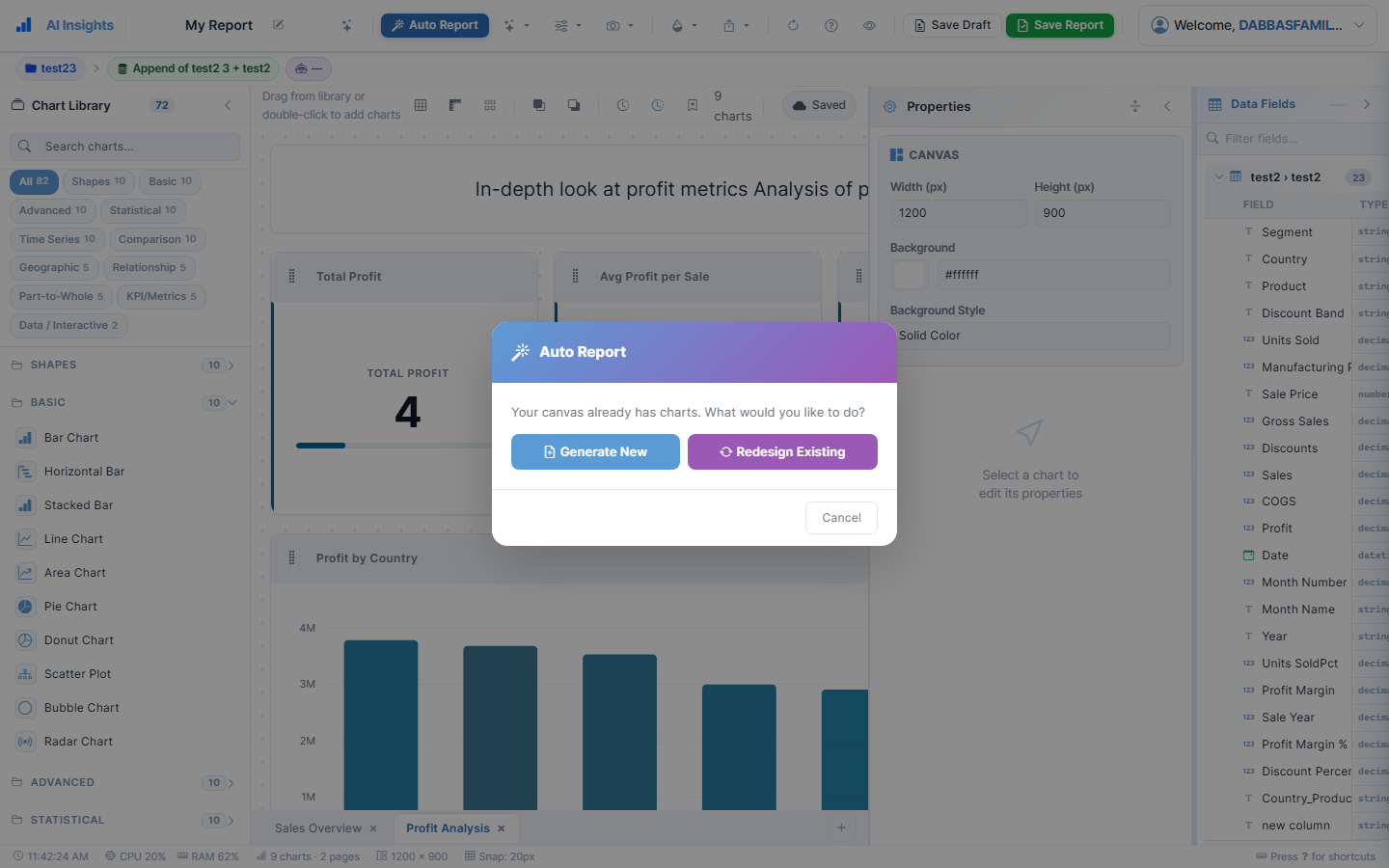
Auto Report builds the whole page — title, KPI row, charts and tables.
The gallery is still there
Press + Visual in the assistant panel for the full library, grouped by what
you are trying to do — Compare & compose, distributions, relationships,
time, geography. More than seventy types: bar, horizontal bar, grouped, stacked,
100% stacked, lollipop, diverging, Pareto, waterfall, Marimekko, dumbbell, paired
bar, population pyramid, span, bullet, progress, velocity, error bar, Gantt,
radar, pictograph, waffle, matrix, pie, donut, treemap, sunburst and the rest.
Nothing was taken away. If you know exactly what you want, it is one click. The
suggestions exist so that you do not have to know.
Why this way round
The app already knows what type each column is and how many distinct values it
holds. That is most of what an analyst uses when they decide, in a second and
without thinking, that a particular question is a bar chart. Encoding those rules
means you stop having to guess — and because they are rules rather than a model,
the suggestions appear instantly and always explain themselves.
What it will not do
The assistant works from the data in your pipeline. It cannot invent a field that
your source does not contain, and it will say so rather than fabricate one. If a
suggestion looks wrong, the reason next to it tells you which columns it read —
usually the fix is in the data, not the chart.
Related: Design a report ·
Filter a report ·
The report screen, panel by panel