DAX measures and calculated columns in Report Studio
Some numbers aren't a column in your data: a profit margin, sales for one segment, revenue = units × price. In Report Studio you write them once, as a measure or a calculated column, in the same formula language as DAX and Excel, and use them in any chart of the report.
| A measure | A calculated column | |
|---|---|---|
| Calculates | one value for each bar, slice or card, from the rows behind it | one value for every row |
| Example | DIVIDE(SUM([Profit]), SUM([Sales])) |
[Sales] - [Profit] |
| Use it as | a chart's Value, a KPI card | a Label, a Value, a table column, a filter |
Create one
- Open the report in Edit.
- Select a chart, open the Data tab and choose New measure or New column. Or open Data model → Model & relationships and scroll to Measures & calculated columns (DAX).
- Pick the table, give it a name and write the expression. The buttons under the box insert field names and functions.
- Select Test. It runs the formula on the table's real rows and shows the result: a measure's total, or a calculated column's first values.
- Select Add. It is saved only once it can be calculated, so a typo never turns into an empty chart.
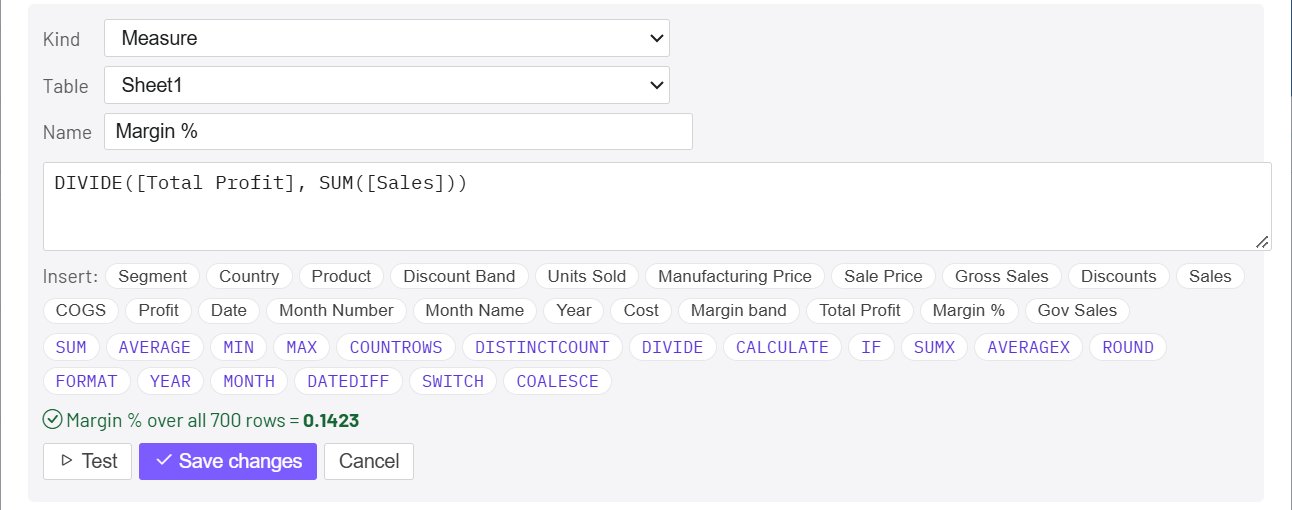
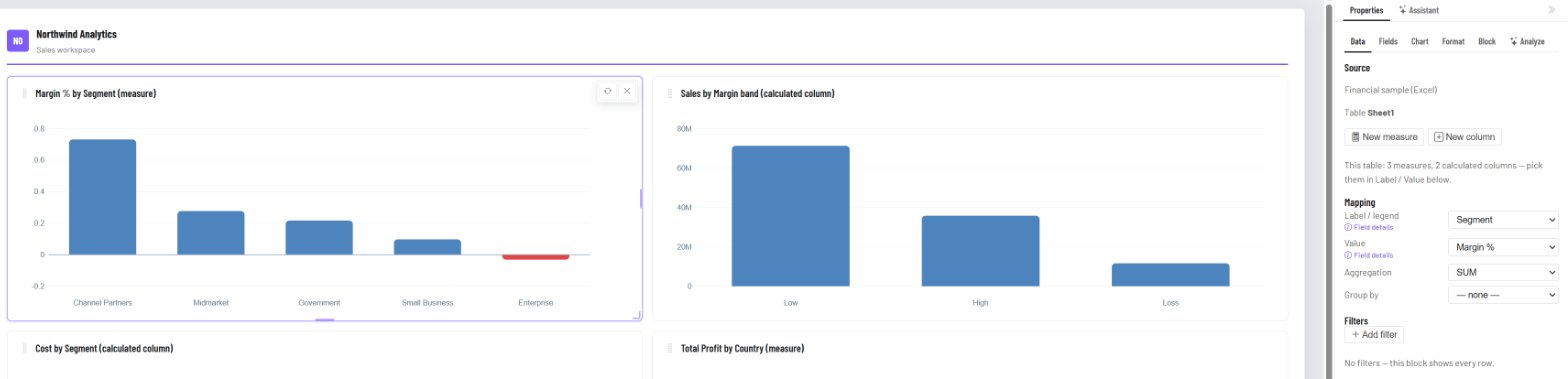
Then use it: in the chart's Data tab, pick the measure as Value, or the calculated column as Label or Value.
Measures
A measure is worked out for each category of the chart, from the rows in that category, the way DAX evaluates a measure in its filter context. On a bar chart by Segment, DIVIDE(SUM([Profit]), SUM([Sales])) gives each segment's own margin; on a KPI card it gives the overall margin.
| Function | What it does | Example |
|---|---|---|
SUM, AVERAGE, MIN, MAX, MEDIAN, STDEV |
over a column or a row expression | SUM([Qty] * [Price]) |
COUNT, COUNTA, COUNTROWS, DISTINCTCOUNT |
counting | DISTINCTCOUNT([Customer]) |
SUMX, AVERAGEX, MINX, MAXX, COUNTX |
an expression row by row, then combined | SUMX('Sales', [Units] * [Sale Price]) |
CALCULATE |
the expression over the rows that meet every condition | CALCULATE(SUM([Sales]), [Segment] = "Government") |
DIVIDE |
division that gives blank instead of an error on zero | DIVIDE([Total Profit], [Total Sales]) |
[Other measure] |
one measure can use another by name | [Total Profit] / [Orders] |
Everything else the Transform formulas support works too: IF, SWITCH, ROUND, FORMAT, YEAR, DATEDIFF and more.
Useful measures
Total Profit   = SUM([Profit])
Margin %       = DIVIDE([Total Profit], SUM([Sales]))
Gov Sales      = CALCULATE(SUM([Sales]), [Segment] = "Government")
Canada share   = DIVIDE(CALCULATE(SUM([Sales]), [Country] = "Canada"), SUM([Sales]))
Orders         = COUNTROWS()
Avg price      = AVERAGEX('Sales', [Sale Price])
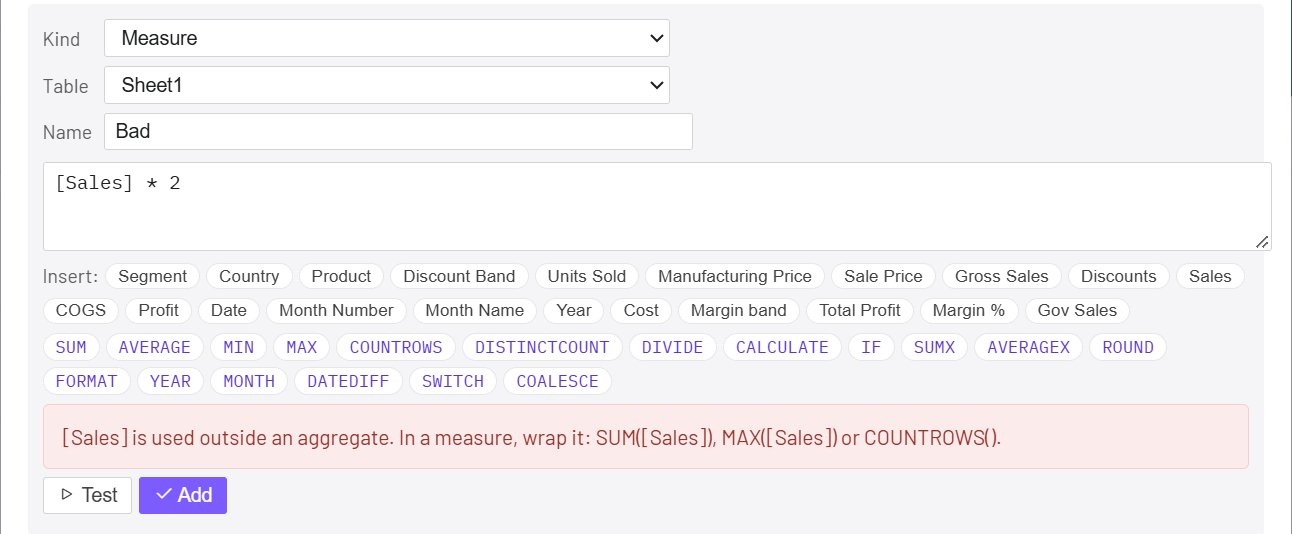
In a measure, a column must be inside an aggregate: write SUM([Sales]), not [Sales]. The editor tells you if you forget.
Calculated columns
A calculated column adds a value to every row. It can use the table's columns and the calculated columns defined before it.
Cost         = [Sales] - [Profit]
Margin band  = IF(DIVIDE([Profit], [Sales]) >= 0.2, "High", IF(DIVIDE([Profit], [Sales]) >= 0, "Low", "Loss"))
Year         = YEAR([Date])
Share        = DIVIDE([Sales], SUM([Sales]))
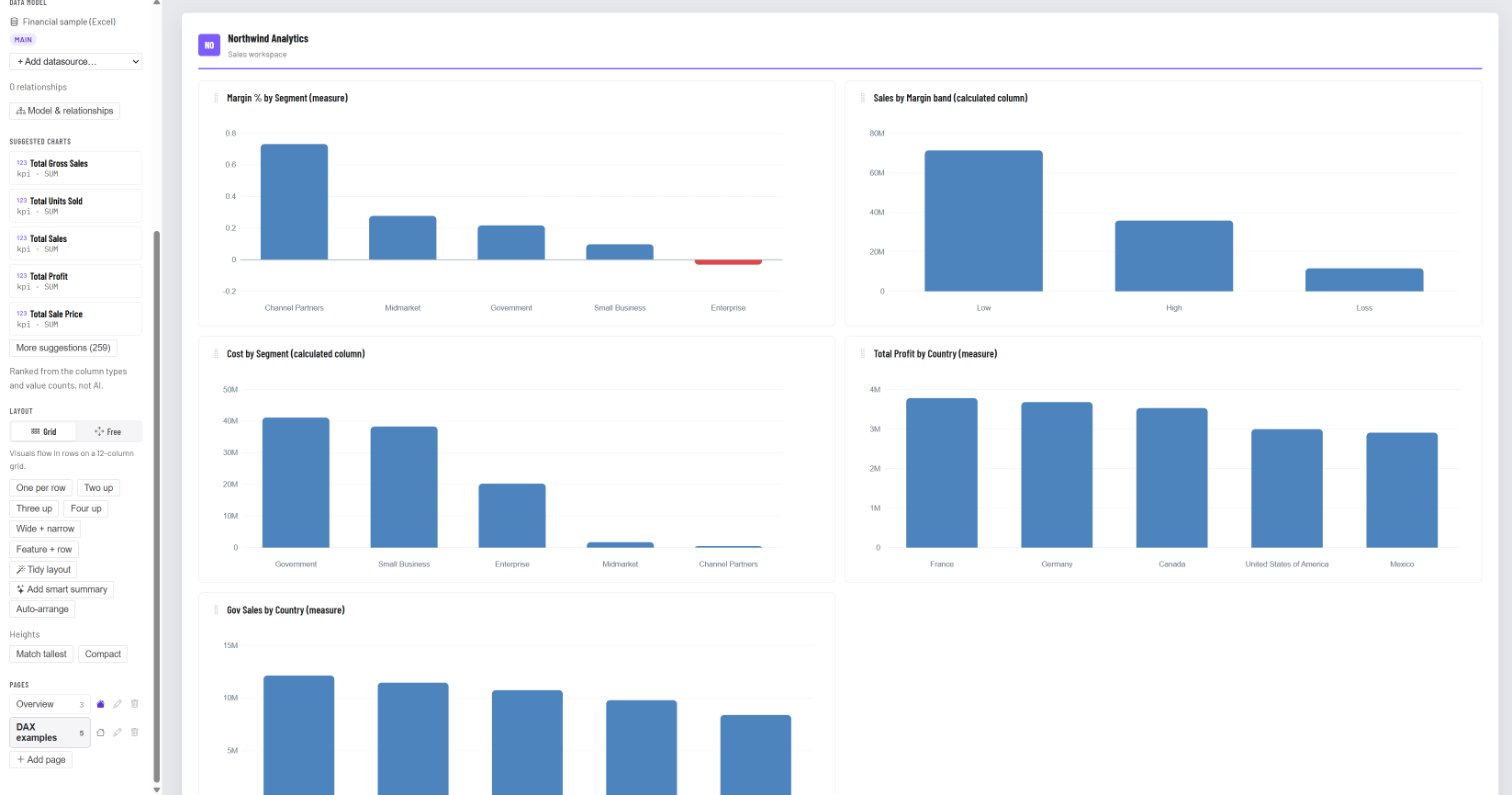
An aggregate inside a calculated column is over the whole table, as in DAX: DIVIDE([Sales], SUM([Sales])) is each row's share of the total. Use a calculated column as a chart's label (Sales by Margin band), as its value (Cost by Segment), as a table column, or filter on it.
Edit, rename and delete
All measures and calculated columns are listed in Data model → Model & relationships, with the table they belong to.
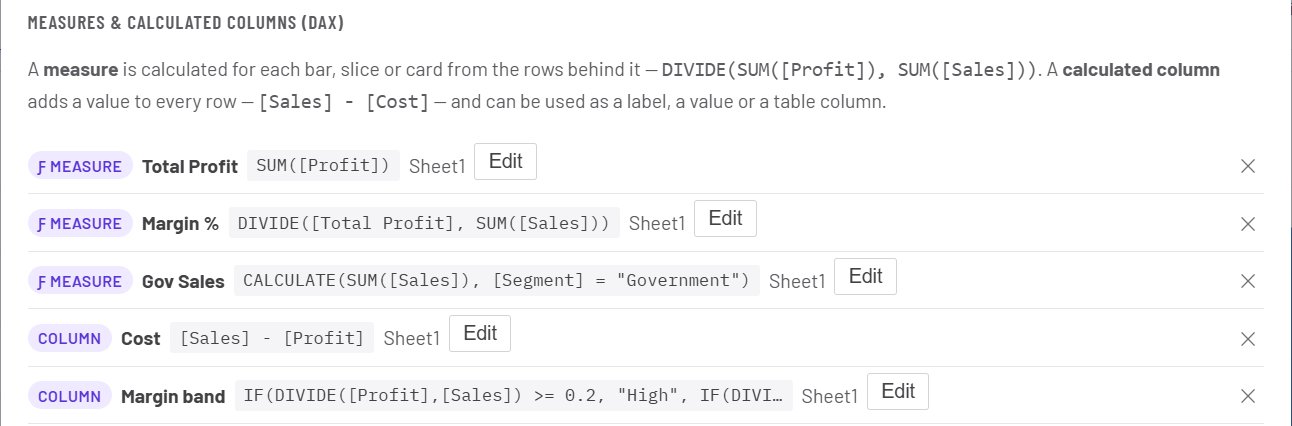
- Edit changes the expression; every chart that uses it redraws.
- Renaming updates the charts and the other formulas that refer to it.
- Delete is refused while a chart, or another measure or column, still uses it.
When something is wrong
The editor explains what to fix before anything is saved:
| You wrote | It tells you |
|---|---|
[Sales] * 2 as a measure |
wrap it: SUM([Sales]) |
SUM([Revenue]) with no such column |
the column isn't in this table, and lists the columns |
FOO([Sales]) |
unknown function FOO() |
| two measures that use each other | they refer to each other in a loop |
| a name already used in the table | pick another name |
Good to know
- Measures and calculated columns work on every kind of datasource except Power BI, which has its own model and measures.
- They respect row-level security, slicers, report filters and chart filters: each reader's numbers are calculated from the rows that reader can see.
- The rows are read the same way any chart reads them, up to the report's row limit per query.
- A measure has no number format yet: a margin shows as 0.14 rather than 14%. Multiply by 100 in the expression if you want a percentage figure.
See also: Report data model for several datasources and relationships.