Report data model: several datasources, relationships and combined tables
A report starts on one datasource. Its data model lets it use more: other datasources from the same workspace, relationships between their tables so a slicer on one table filters the charts on another, and combined tables that join two tables into one. It works the way the model view in Power BI does, in your browser, with no file to publish.
You'll find it in Edit mode, in the left rail under Data model.
Add a datasource to a report
- Open the report and switch to Edit.
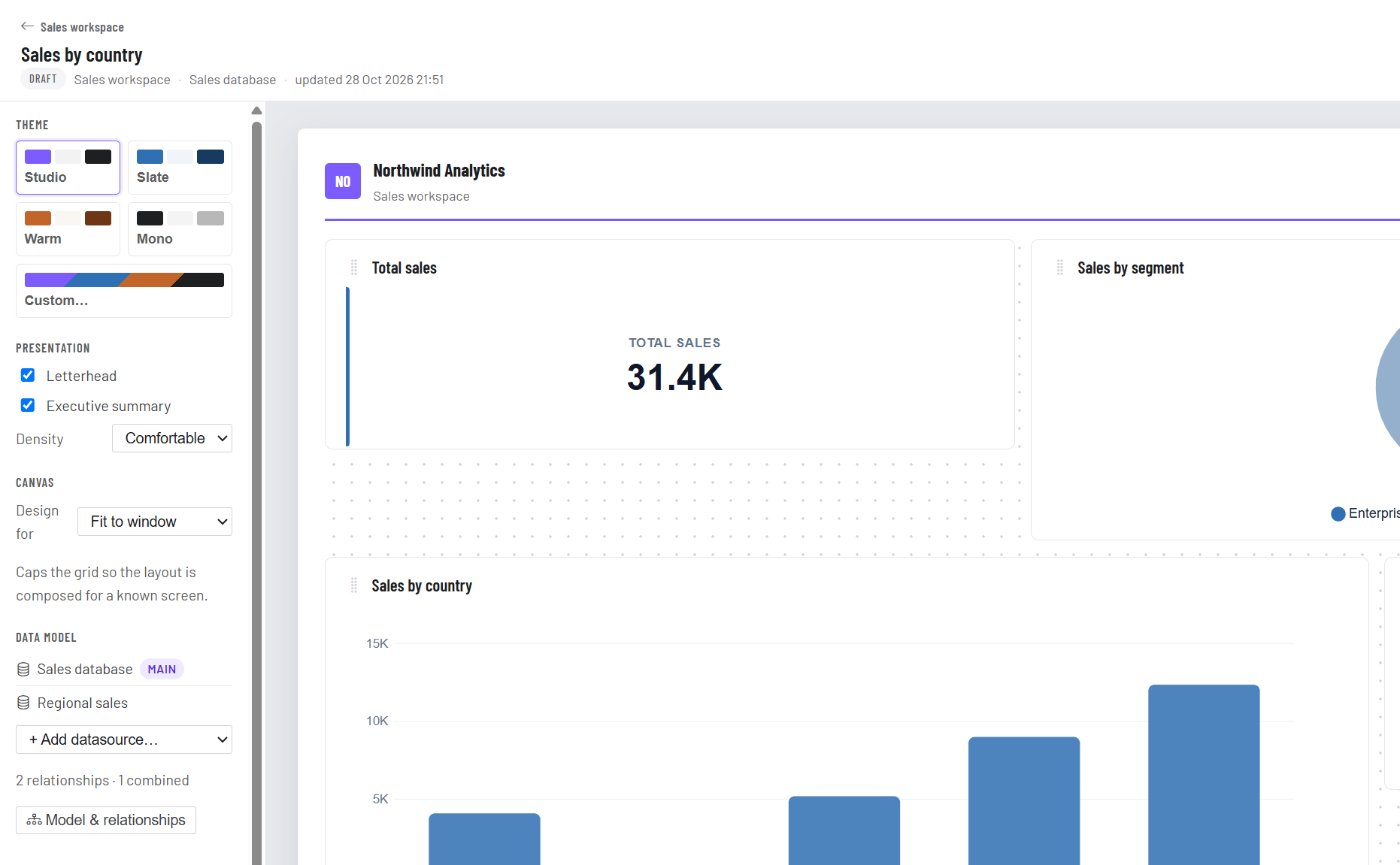
- In the left rail, under Data model, open + Add datasource… and pick one.
- Select a chart, open the Data tab and choose its Datasource and Table. Or pick the datasource under Suggested charts → From and add a suggestion.
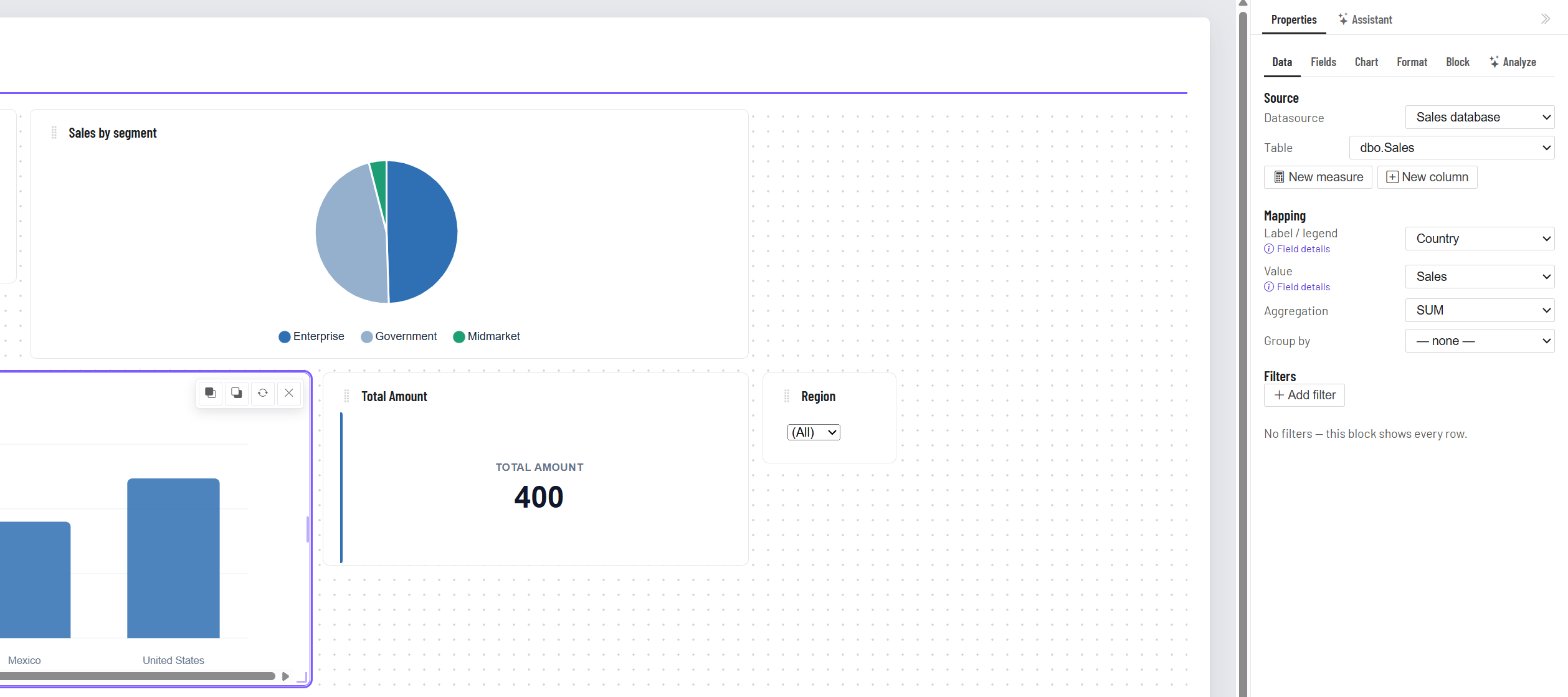
The list offers the datasources of the report's own workspace (and organisation-wide ones). A report can't use data from another workspace: readers you share the report with only ever reach data that belongs where the report lives. Changing a chart's datasource or table clears its label and value, because the new table has different columns.
To take a datasource out of the report, use ✕ next to it. It can only be removed once no chart uses it.
Relationships
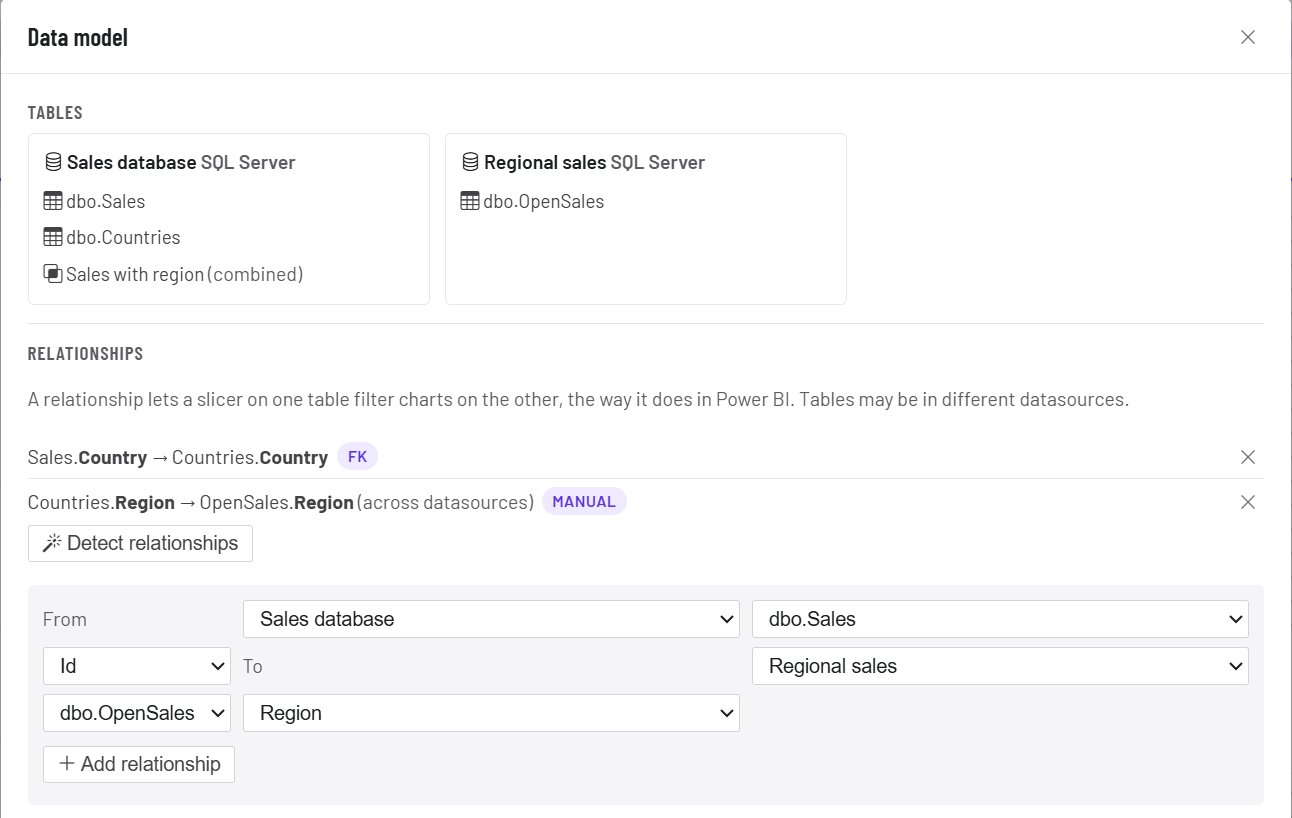
A relationship says that a column in one table matches a column in another: Sales.Country → Countries.Country. With it, a slicer on Countries (for example Region = North) also filters the charts on Sales, Opportunities or any other related table, as it would in Power BI.
Open Data model → Model & relationships:
- Detect relationships reads them from the datasource itself: foreign keys in SQL Server, and the model's relationships in Power BI. Only tables the datasource offers are used.
- Add relationship links two columns by hand: pick the table and column on each side. The two tables can be in different datasources, for example a Countries table in your SQL database and an Opportunities sheet in an Excel file.
How filters travel
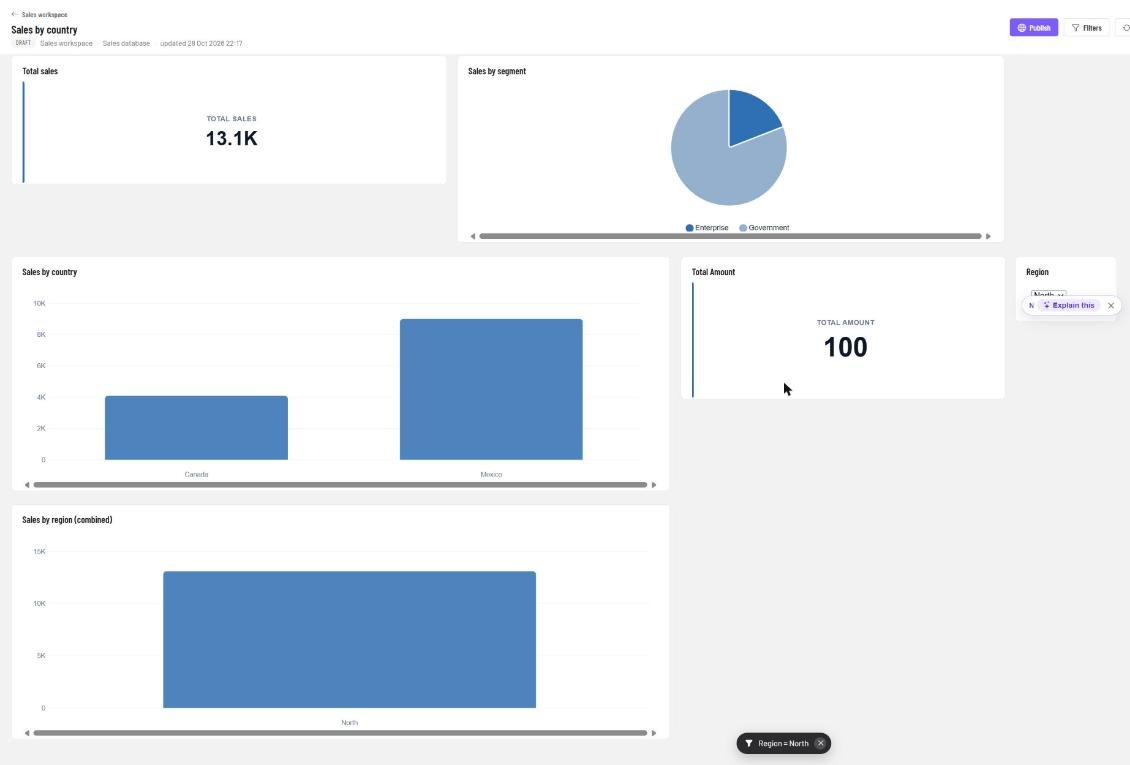
When a slicer or a click filters one table, every chart on that table is filtered as before. A chart on a related table is filtered by the matching key values: Region = North on Countries becomes Country is Canada or Mexico on Sales. A chart on a table with no relationship is left as it is.
Good to know:
- A filter travels one step: from a lookup table (like Countries) to the table that refers to it, or back. Build the model as a star: one main table in the middle, lookup tables around it.
- When a filter matches more than 2,000 key values it isn't passed on, and you'll see a message. Filter on a narrower value.
- Row-level security still applies on every table, related or not.
Combined tables
A combined table joins two tables of the same SQL datasource into one, so a single chart can use fields from both, for example Sales by Region when the region lives in Countries.
- Open Data model → Model & relationships → Combined tables.
- Pick the datasource, the left and right table and the column that links them.
- Choose what to keep: all rows of the left table, or only rows that match.
- Name it and select Create combined table.
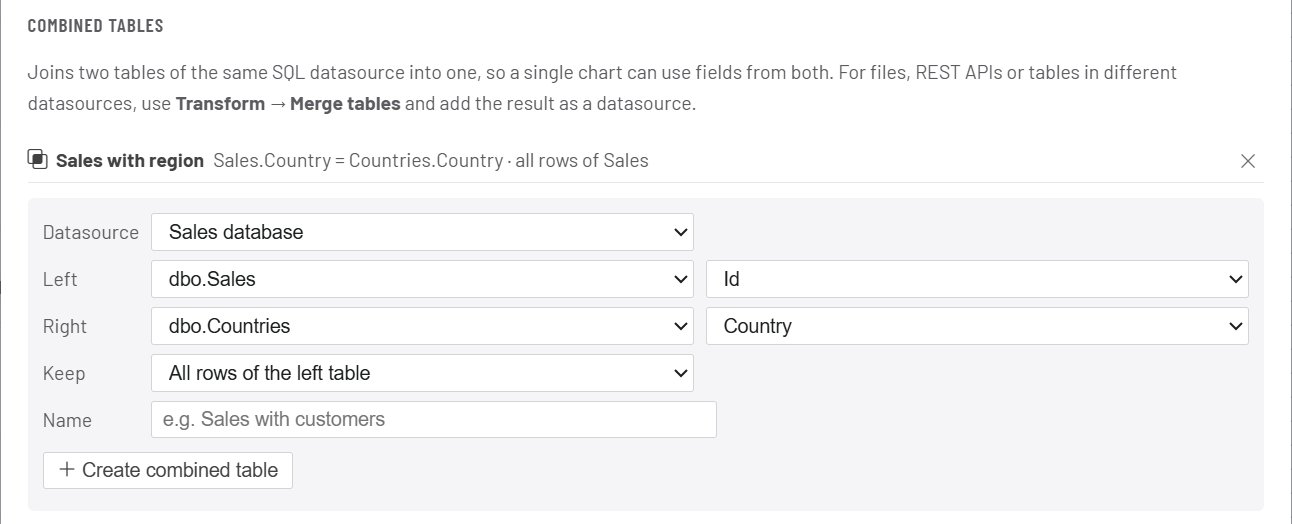
The combined table then appears in every chart's Table list, marked ⧉. It holds all columns of the left table and those of the right table (a clashing name gets the table name in front). The two tables are also related by the same key, so filters cross between them.
Joining tables from different datasources, or from files and REST APIs? Use Transform → Merge tables and add the result as a datasource.
Measures and calculated columns
The data model is also where you write DAX-style measures (like DIVIDE(SUM([Profit]), SUM([Sales]))) and calculated columns. See Measures and calculated columns.
Questions
Does this copy my data? No. Charts still query each datasource directly, with the same permissions and row-level security as any other chart.
Does it work in View mode and shared reports? Yes. Relationships and combined tables are saved with the report, so readers' slicers filter related charts too.
Which datasources can I combine? Any two in the same workspace for relationships. Combined tables need both tables in the same SQL datasource.