AI Insights: start a new analysis
An AI Insight is a self-contained analysis: its own datasource, its own shaping steps, and the reports built from them. Each one is kept apart, so one project never disturbs another. A sales review, a stock check and a marketing report can each live in their own insight in the same workspace.
Watch the 48-second walkthrough: AI Insights.
Start one
Open your workspace and choose New AI Insights.
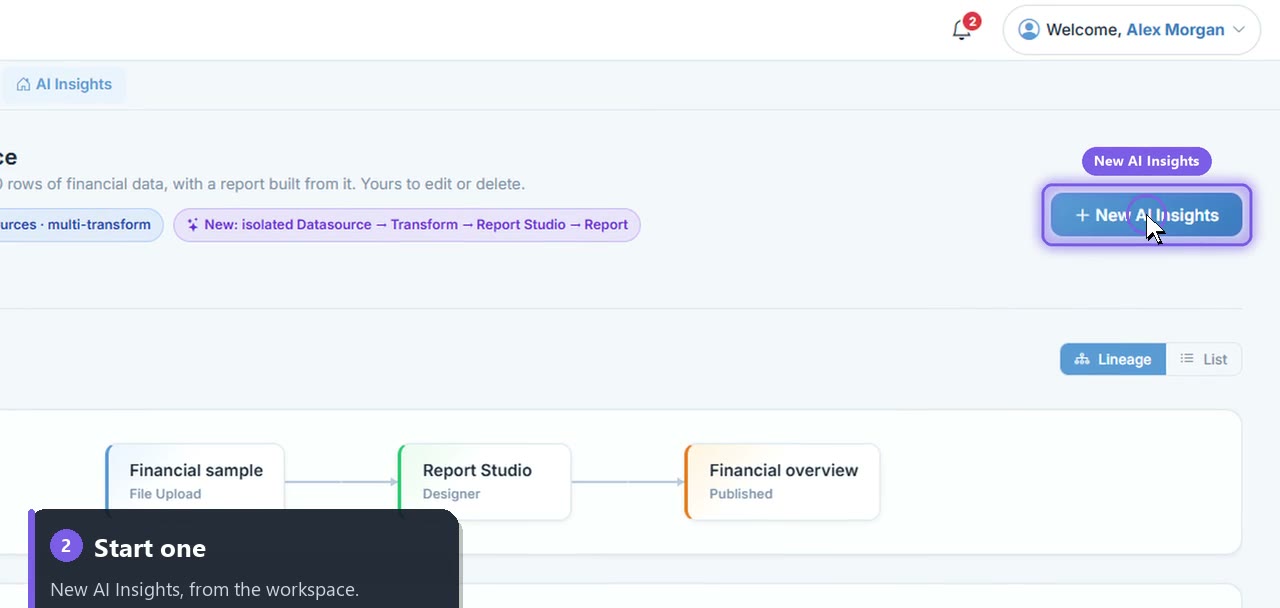
It walks you through connecting the data: upload an Excel or CSV file, or connect a database, a cloud app or an API.
Pick the tables and set up the assistant. The insight is created for you.
Find it again
Every insight appears on the AI Insights page as one card. Open any card to pick up that analysis where you left it.
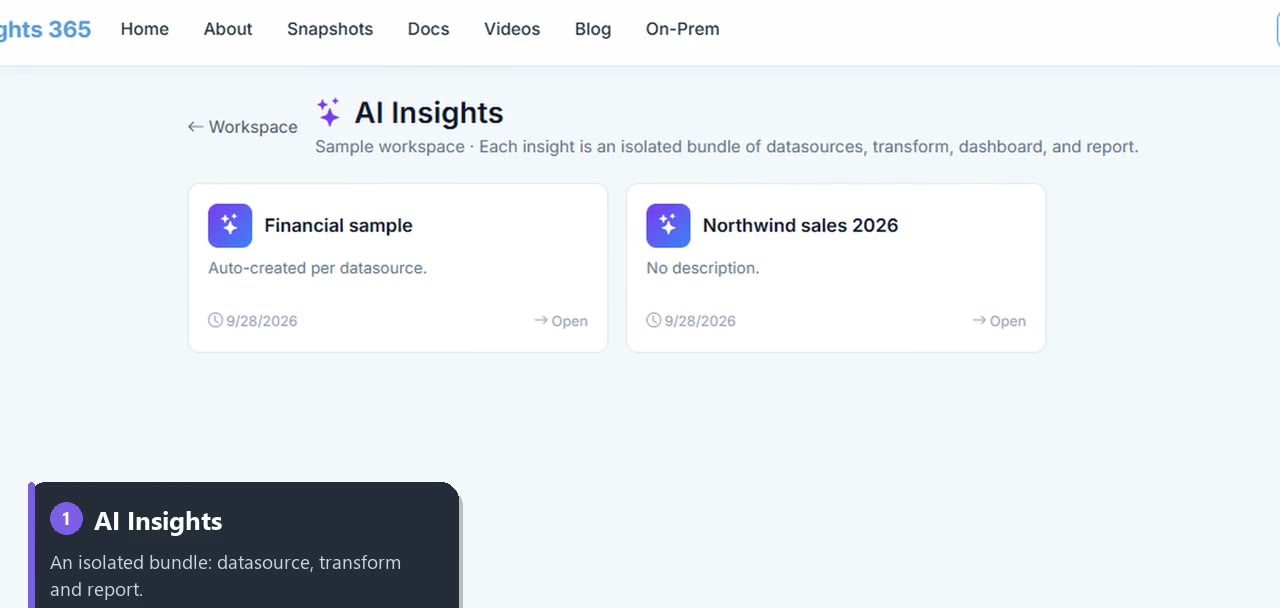
Your first insight is created automatically for the sample data, so you can try everything before connecting your own.
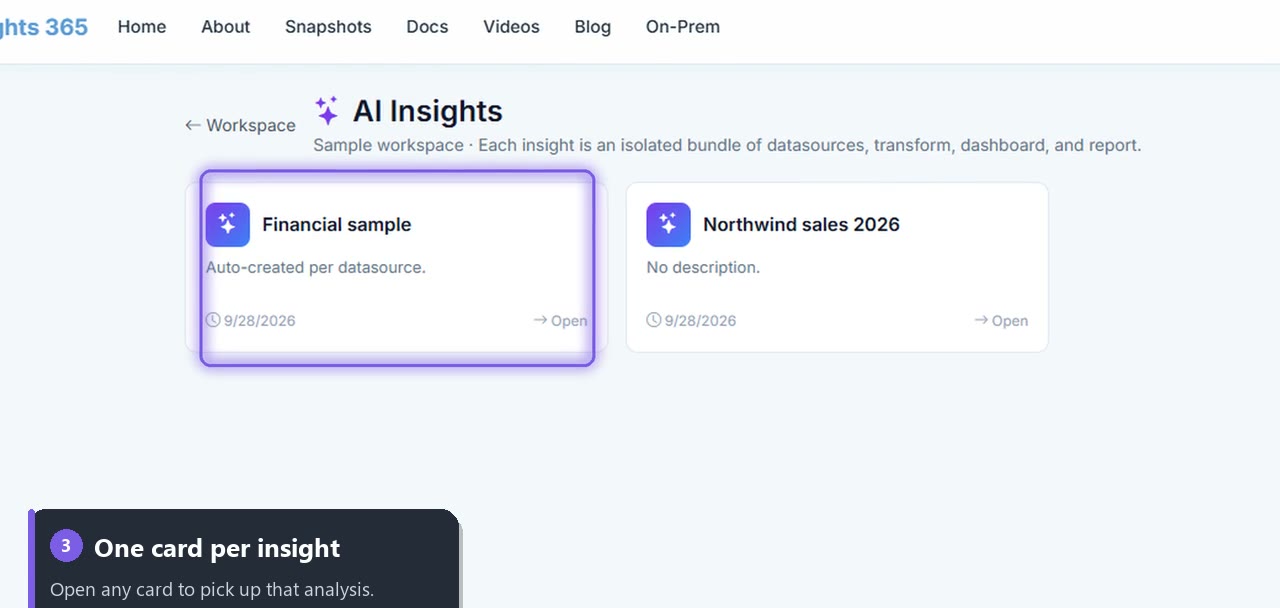
Read the lineage
The workspace lineage shows how each insight flows: from its datasource, to its assistant, to the report designer and the reports built there. It's the quickest way to answer "where does this number come from?"
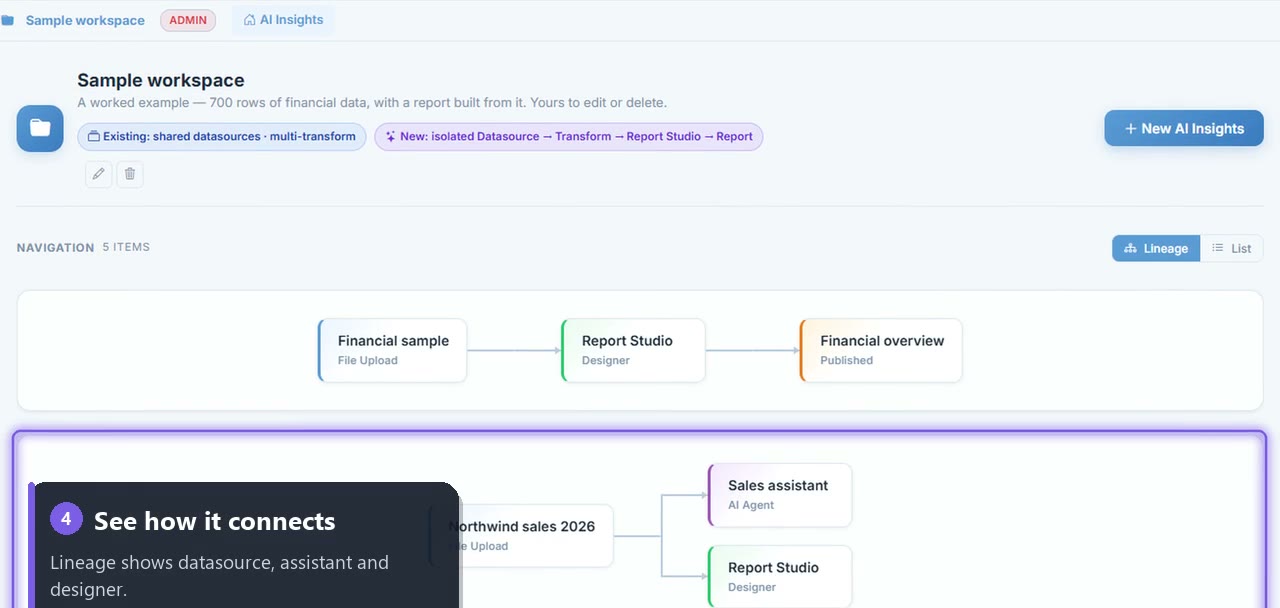
What's inside an insight
| Part | What it does |
|---|---|
| Datasource | The file, database or app the analysis reads |
| Shaping steps | Optional no-code transforms: clean, join, calculate |
| Assistant | Answers questions in plain English from this data only |
| Reports | Built in the report designer, shared, exported or emailed |