Upload an Excel or CSV file
A spreadsheet is the quickest way to start. Upload an Excel workbook or a CSV file, and a minute later you can ask questions about it in plain English and build a report from it.
Watch the 57-second walkthrough: Upload an Excel or CSV file.
What you can upload
| Formats | Excel workbooks and CSV files |
| Size | Up to 25 MB per file |
| Storage | Stored encrypted |
| Sheets | In a workbook, every sheet becomes its own table |
Upload a file
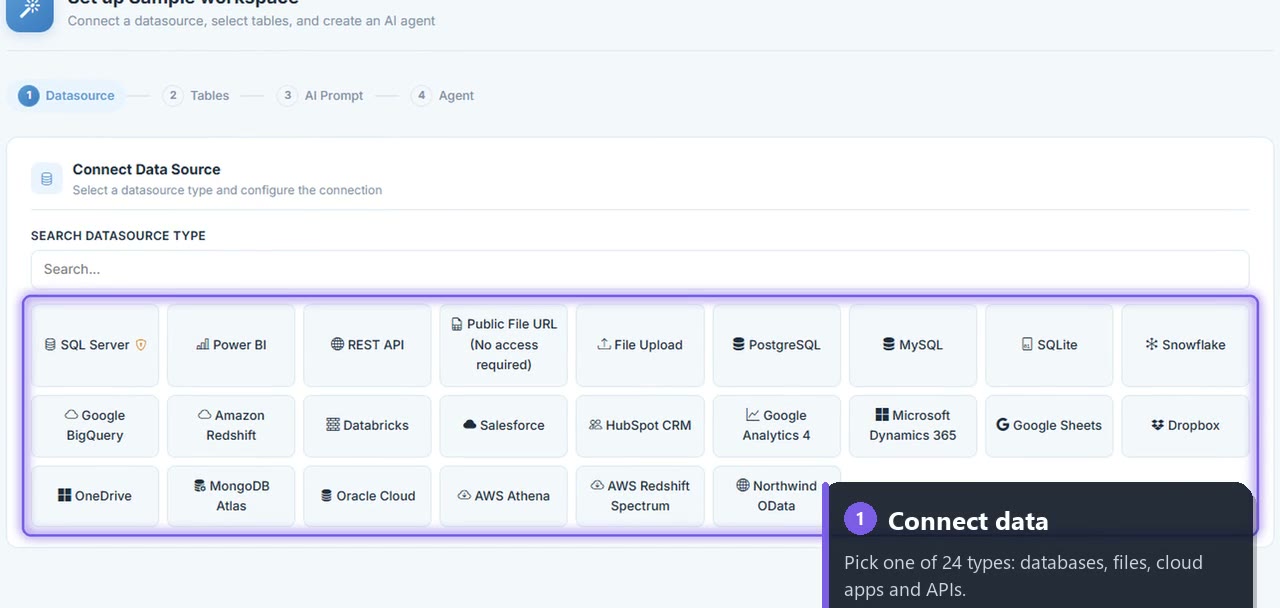
From your workspace, choose New AI Insights. You land on the list of datasource types.
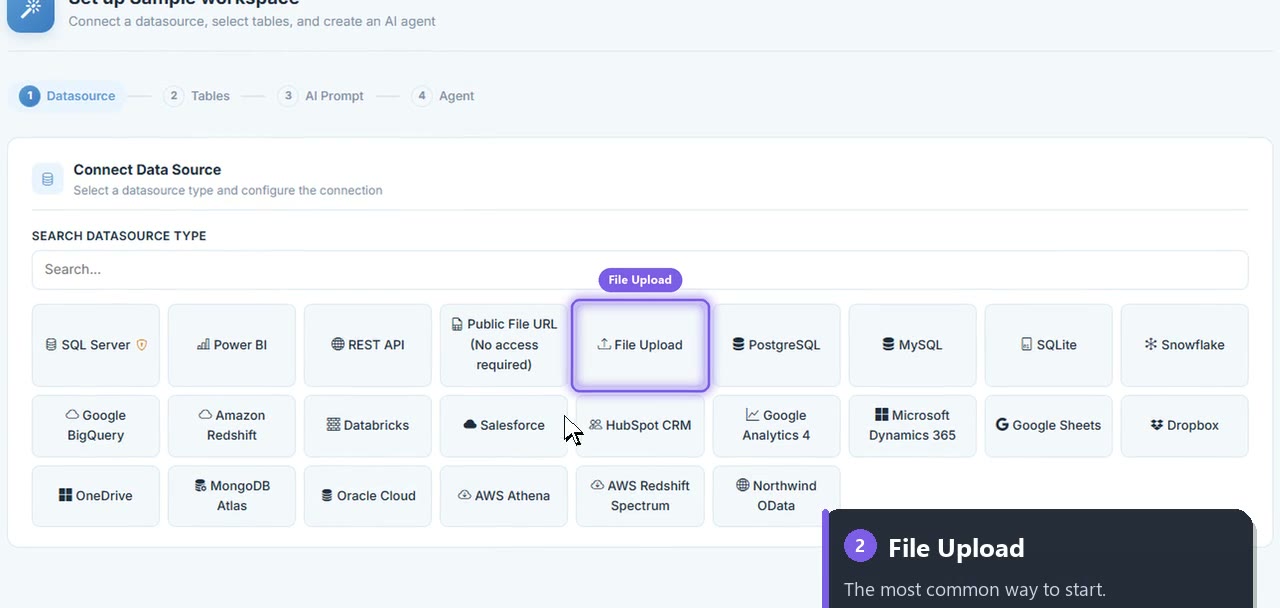
Choose File Upload.
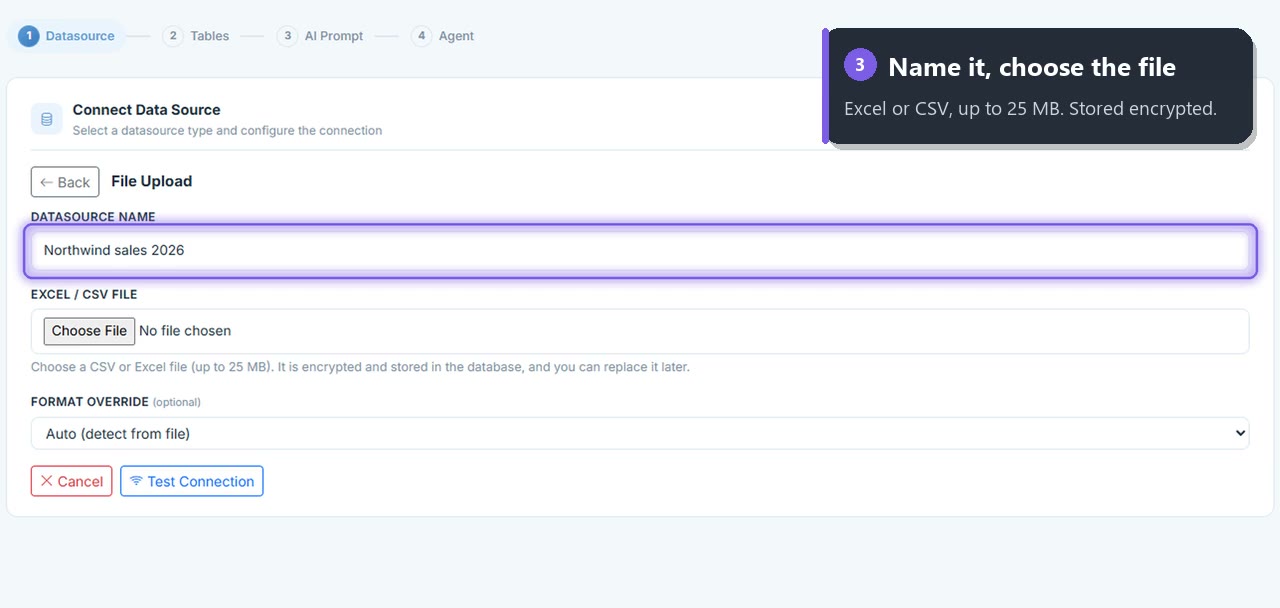
Give the datasource a name you'll recognise, for example Northwind sales 2026, then choose your file.
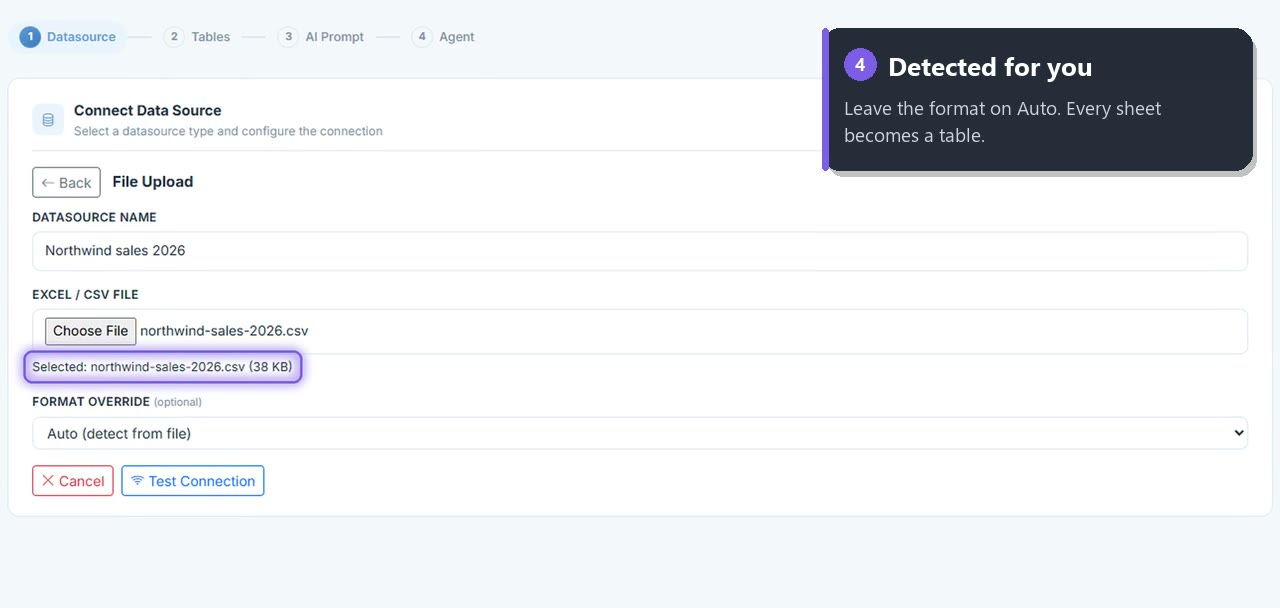
Leave Format override on Auto: the format is detected for you.
Choose Test Connection. When it says Connected successfully, the file has been read. Choose Next: Select Tables.
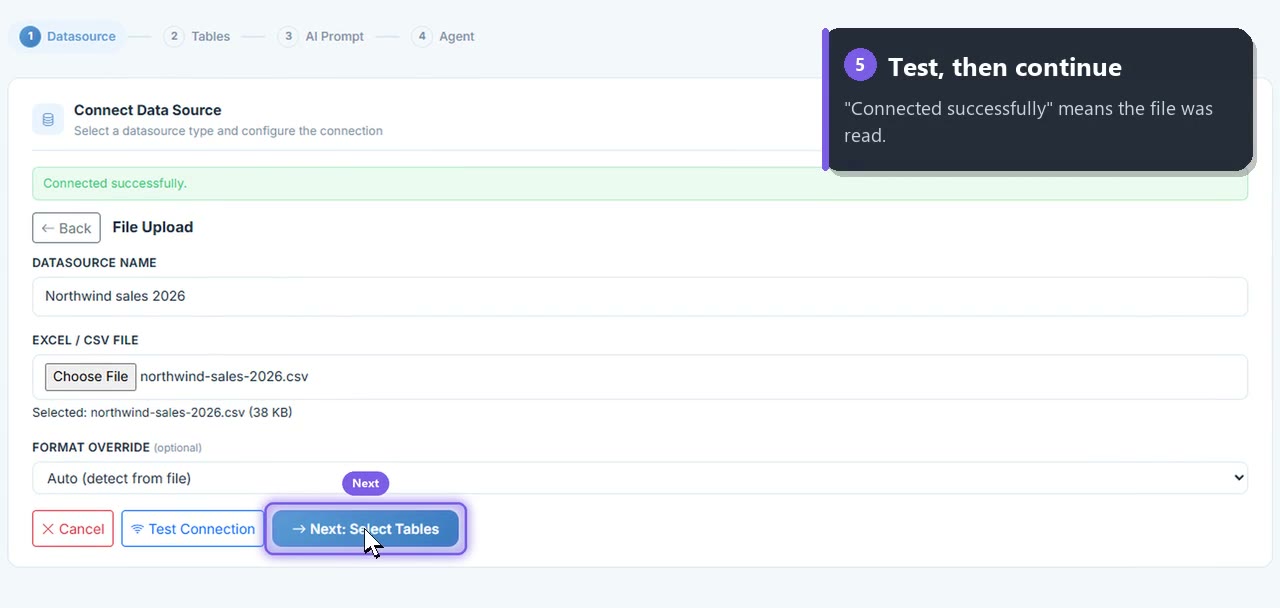
From there you pick the tables (sheets) to use and set up your assistant. Then ask your first question, for example "Total sales by month", and turn the answer into a chart.
Tips for a clean file
- Put column names in the first row, one header per column.
- Keep one table per sheet: no titles or notes above the header.
- Use real dates and numbers, not text like "approx. 5k".
- Avoid merged cells and subtotal rows: the AI totals the data for you.
Your file changes often?
An upload is a copy of the file as it was. If the data is updated every day, connect it live instead:
- A CSV, XLSX or JSON file URL, refreshed on every chart load
- Google Sheets, read live
- SQL Server and other databases