Excel to report in 2 minutes: no formulas, no pivot tables
Your data already lives in a spreadsheet. Turning it into a report usually means pivot tables, SUMIFS, chart formatting and an afternoon you didn't have.
Here's the faster way: upload the file, describe the report, and let AI build it.
1. Upload the file (30 seconds)
From your workspace choose New AI Insights, then File Upload.
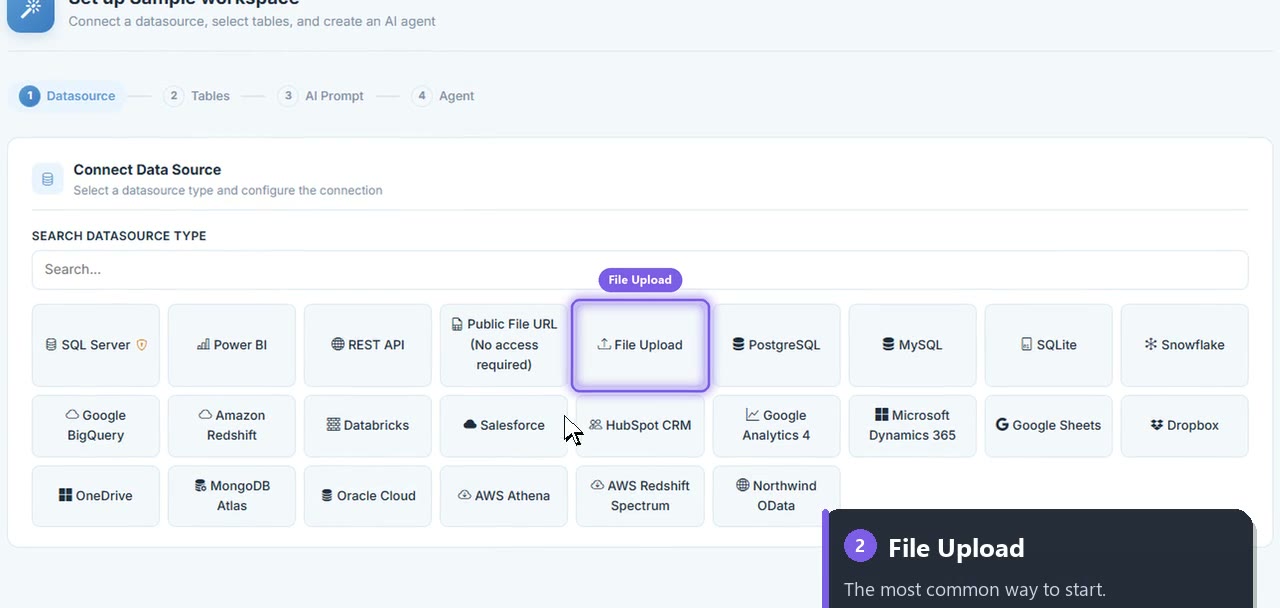
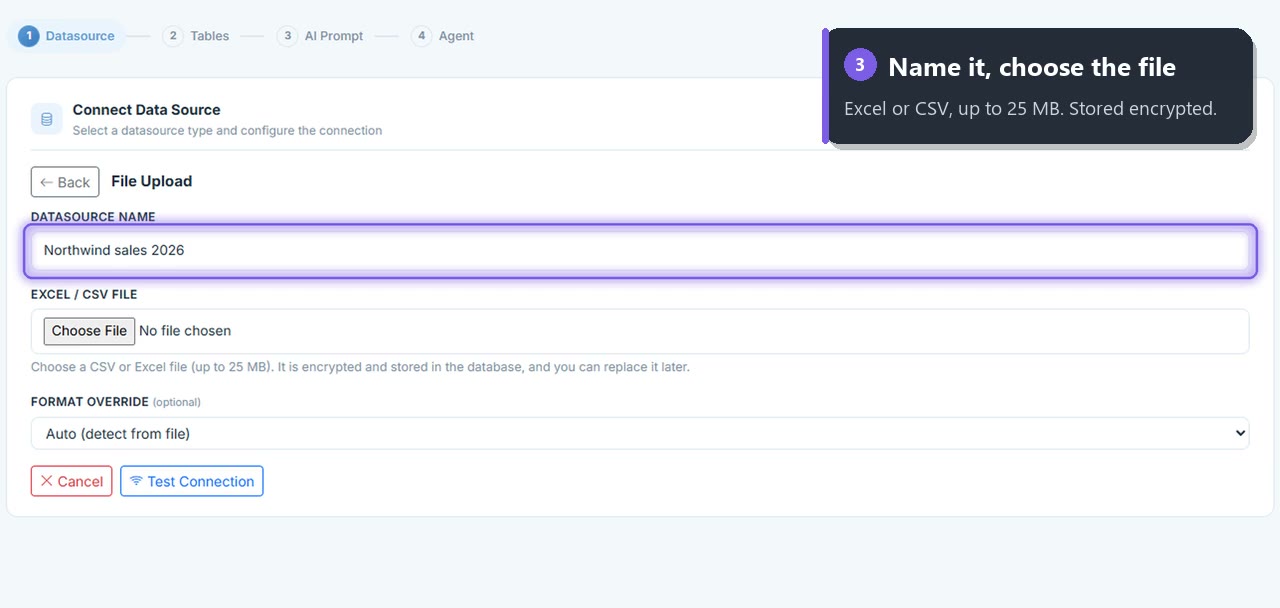
Name it, choose your Excel or CSV file (up to 25 MB, stored encrypted), and leave the format on Auto. In a workbook, every sheet becomes its own table.
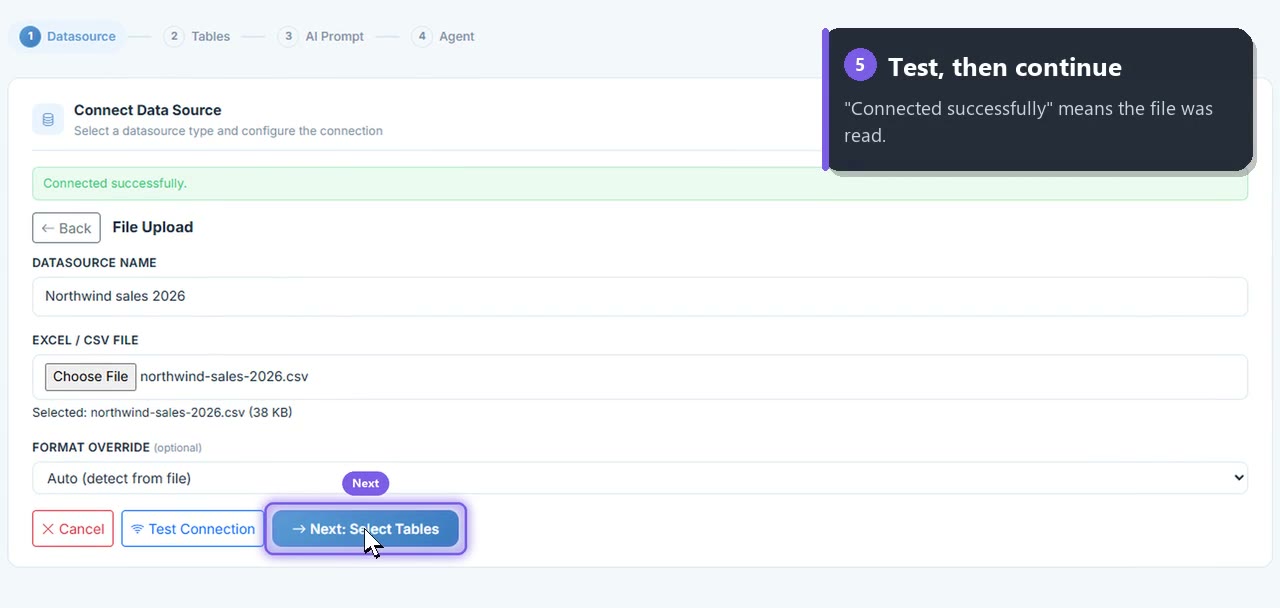
Choose Test Connection. When it says Connected successfully, you're in.
2. Ask for the report (60 seconds)
Pick your sheets, then just ask:
"Total sales by month, profit by product, and the top 10 customers."
AI picks the right charts (KPI cards, line, bar, table) and builds them on the report. Don't like one? Ask for a change: "make that a pie chart", "only 2026".
3. Share it (30 seconds)
Publish and copy the link, export a PDF or CSV, or email it every Monday.
Pivot tables vs. asking
| Excel pivot tables | Ask AI Insights 365 | |
|---|---|---|
| New question | Rebuild the pivot | Type the question |
| Charts | Insert and format each | Built for you |
| Sharing | Email the file | One live link |
| Updates | Copy and paste new data | Upload again, or connect the file live |
Tips for a clean upload
- Headers in the first row, one per column.
- One table per sheet, with no titles above it.
- Real dates and numbers, no merged cells or subtotal rows.
Try it with your spreadsheet
Your first report is free: no credit card, no deadline.
Upload your file and build a report →
Full guide: Upload an Excel or CSV file · Video: Upload in 57 seconds