Export and print a report
Export turns a report into a file you can keep, attach or move to another tool. It's one menu in the report toolbar.
Watch the 41-second walkthrough: Export and print.
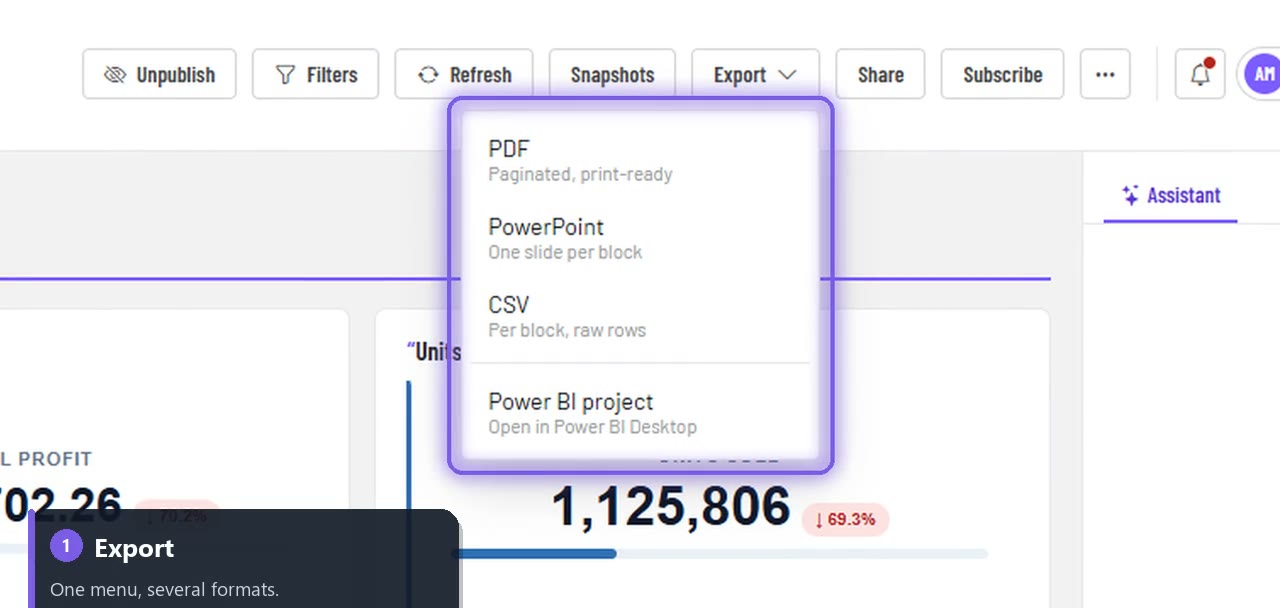
| Format | What you get | Good for |
|---|---|---|
| A paginated, print-ready copy | Board packs, email attachments, archives | |
| CSV | The numbers behind each chart on the page | Excel, Google Sheets, finance checks |
| Power BI project | A .pbip project you open in Power BI Desktop |
Teams that also use Power BI |
- Open the report and choose Export → PDF.
- Your browser's print dialog opens. Choose Save as PDF as the printer and save.
CSV: the numbers behind each chart
Choose Export → CSV. You get one file, named after the report, with a section for every chart on the current page: the chart's title, then its labels and values.
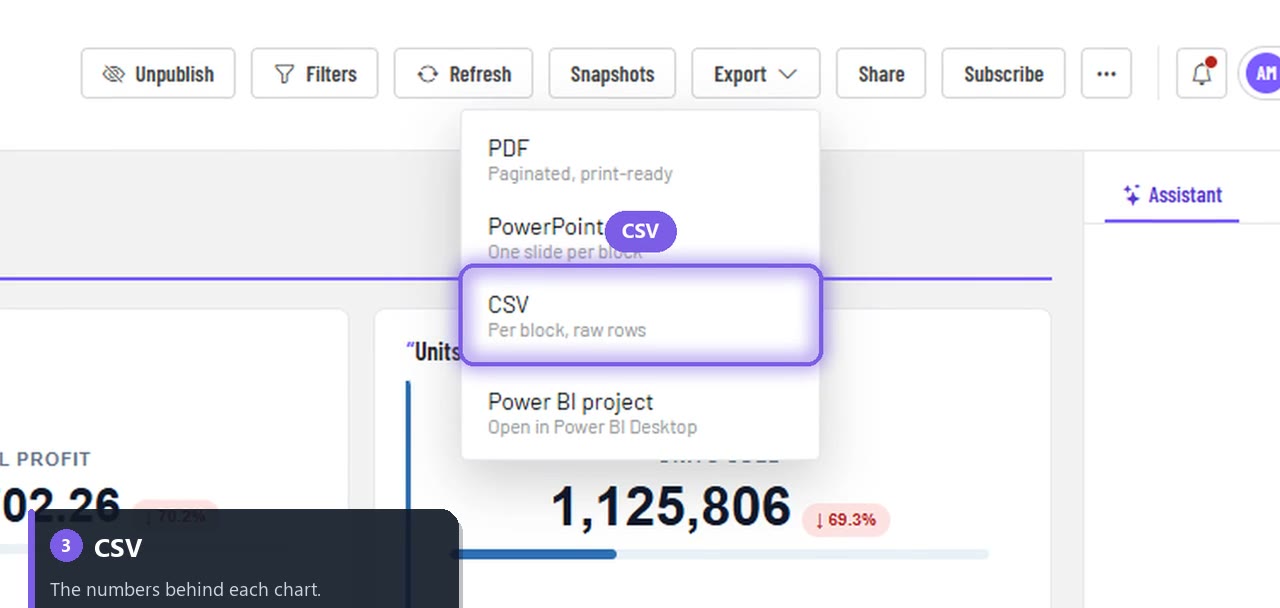
Let the charts finish loading first: the CSV contains exactly what's drawn on the screen.
Power BI project
Choose Export → Power BI project. AI Insights 365 builds a Power BI project and your browser downloads it as a ZIP.
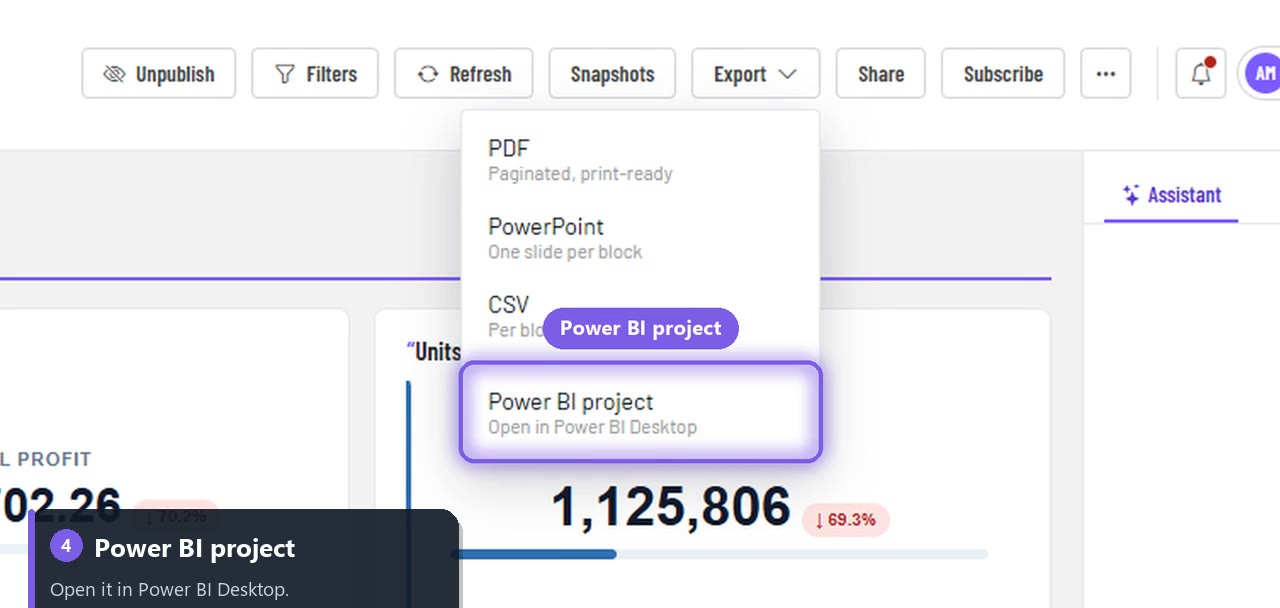
- Extract the ZIP.
- Double-click the
.pbipfile to open it in Power BI Desktop.
The project contains the report layout (pages and visuals mapped from your report) and a semantic model with measures built from your charts. It's the easy way out if a report ever needs to move to Power BI, and a fast way to start a Power BI report without building it from scratch.
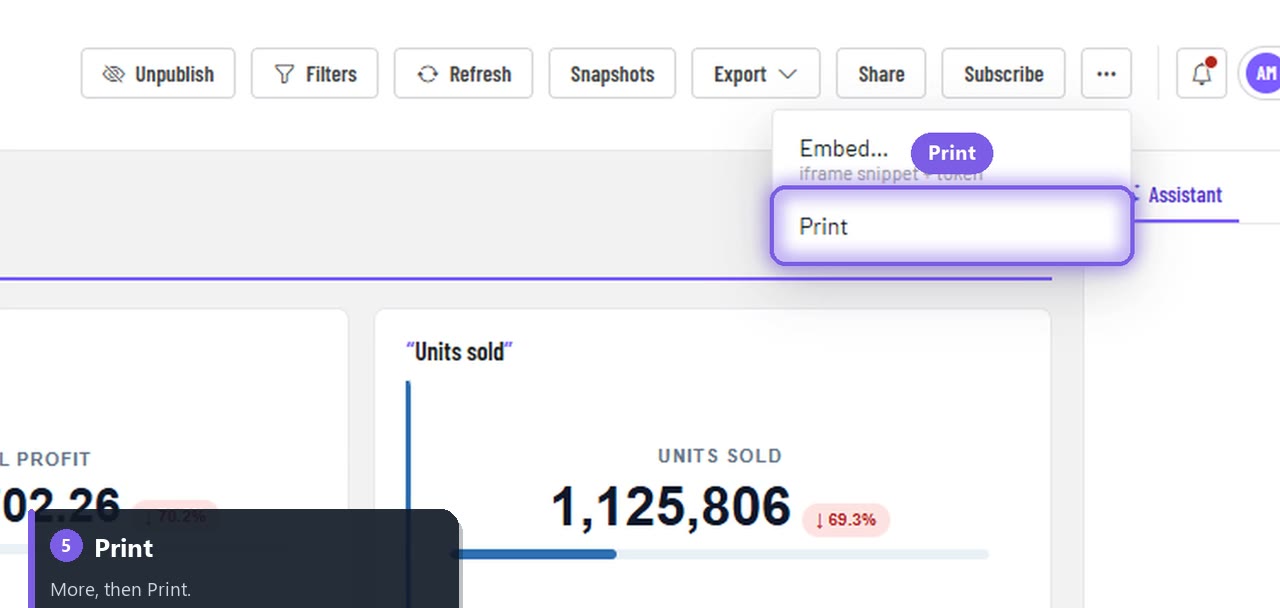
Choose More (⋯) → Print to print the report directly.
FAQ
Is PowerPoint available? PowerPoint is listed in the menu, but it isn't available on the new report screen yet.
Does the CSV match the screen? Yes. It's built from the charts exactly as they're drawn for you, including your filters and any row-level security that applies to you.
Can I send exports on a schedule? Yes: use scheduled subscriptions to email the report every day, week or month.