Report snapshots
A snapshot freezes a report exactly as it is now: the numbers, the charts and the layout. Take one at month-end, before a board meeting or before a big change, and you can always go back to that exact version.
Watch the 41-second walkthrough: Snapshots.
Take a snapshot
Open the report and choose Snapshots in the toolbar.
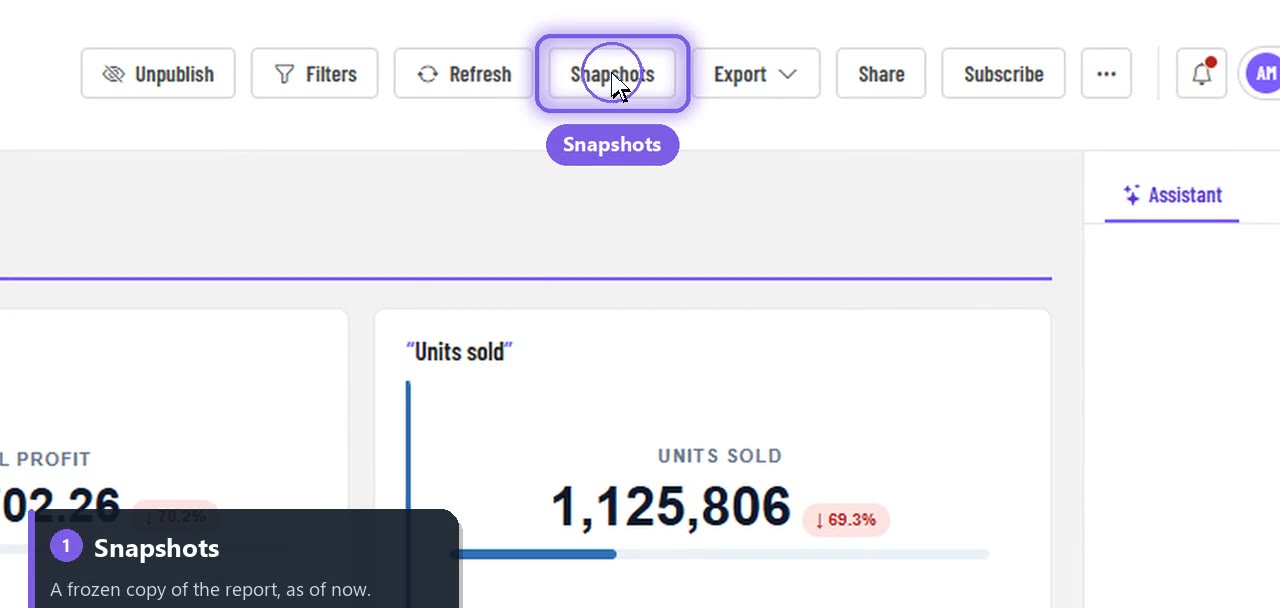
Choose Take a snapshot. It's named with the date and time, for example Snapshot 9/29/2026, 1:23:00 AM, and added to the list.
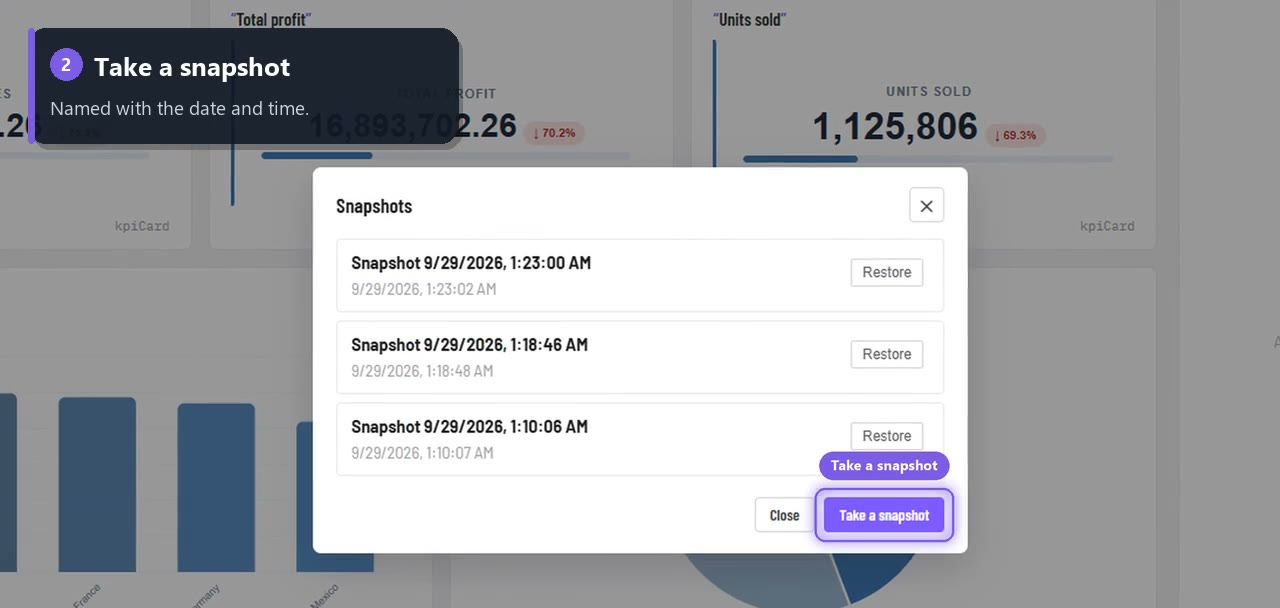
Keep a history
Every snapshot stays in the list, with when it was taken and who took it. Keep this month's close next to last month's, or the exact version you showed the board.
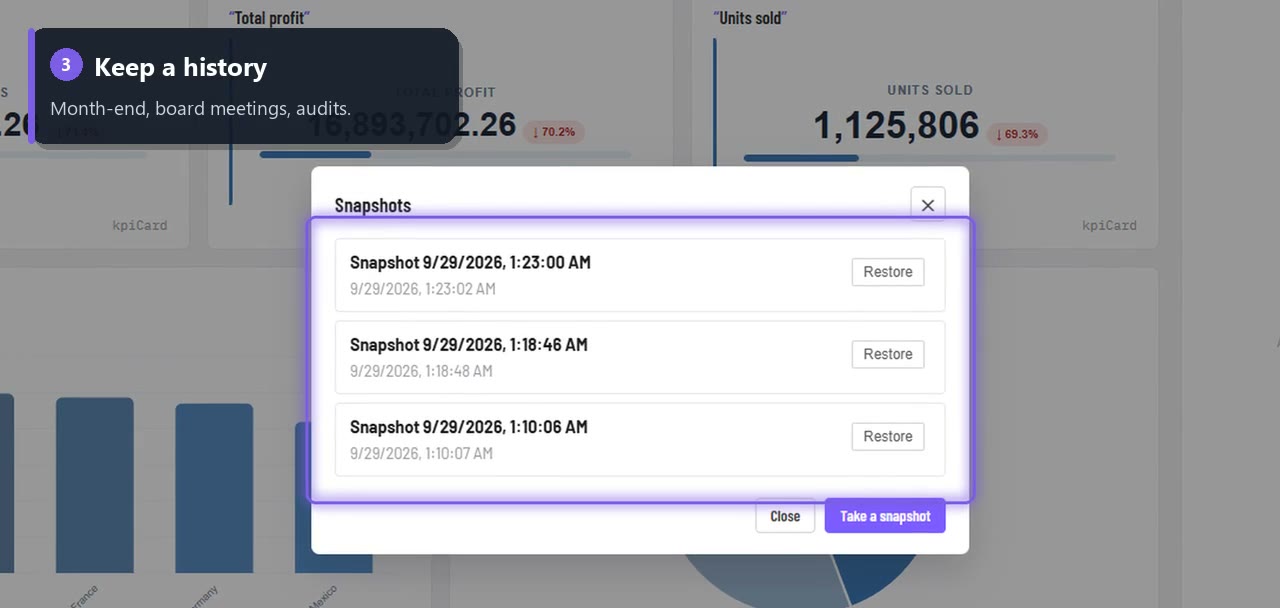
Good moments to take one:
- Month-end and quarter-end close
- Before a board meeting or an investor update
- Before you redesign a report
- For an audit trail of what was reported and when
Restore a snapshot
- Open Snapshots and choose Restore next to the version you want.
- Confirm. Restoring replaces the report's current layout, so you're asked first.
The report reloads with that version.
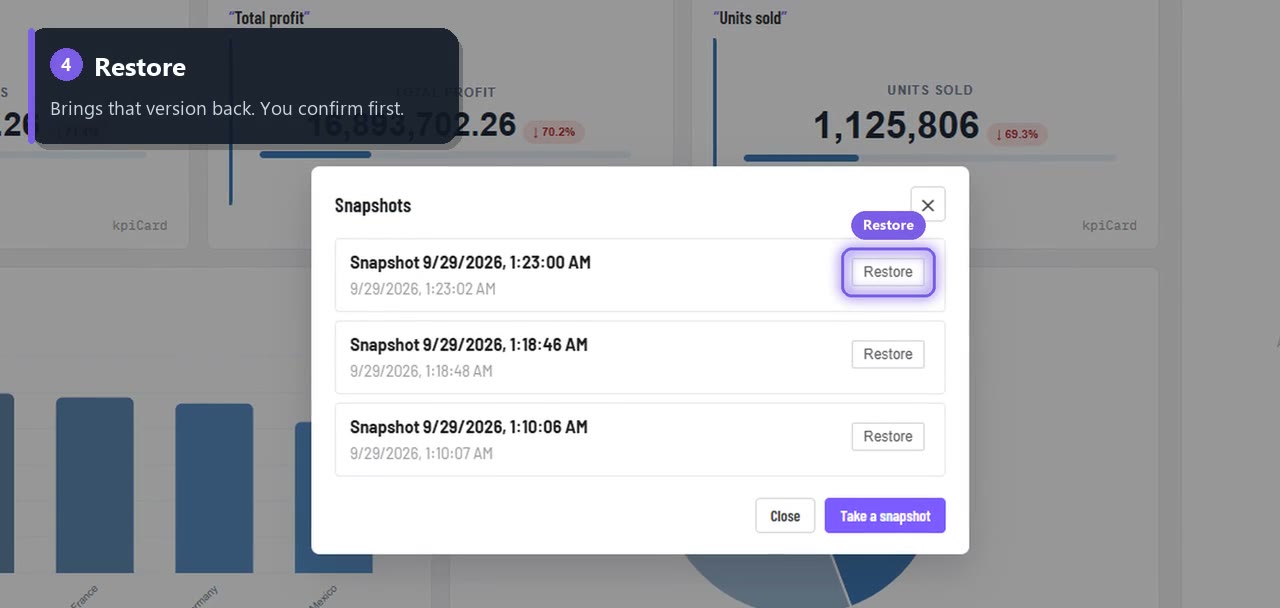
Tip: take a snapshot of the current version before you restore an older one, so you can come back to it.
Snapshots, subscriptions or export?
| You want to… | Use |
|---|---|
| Go back to an exact earlier version of the report | Snapshot |
| Send a copy to people every week or month | Scheduled subscriptions |
| Keep a file outside the app | Export to PDF or CSV |