Build a report with AI, then open it in Power BI Desktop
Building a Power BI report from scratch takes time: model the data, write the measures, drag every visual onto the canvas. If your company runs on Power BI, you still have to end up there.
So start somewhere faster, and take the result with you.
Step 1: describe the report
In AI Insights 365 you connect your data (an Excel or CSV file, SQL Server, PostgreSQL, Snowflake and more), then ask for what you need in plain English:
"A monthly sales report with total revenue, profit, units sold and sales by country."
AI builds the charts and KPIs. You adjust them in the report designer until they're right.
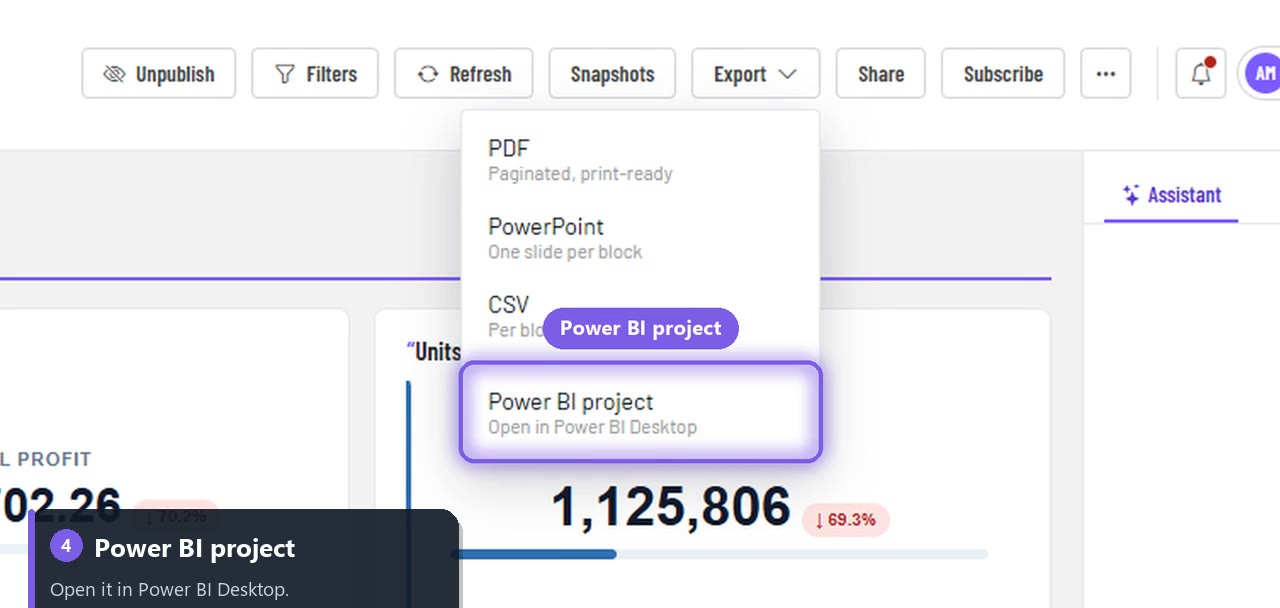
Step 2: Export → Power BI project
Choose Export → Power BI project. You get a ZIP. Extract it and double-click the .pbip file to open it in Power BI Desktop.
The project includes:
- The report layout: your pages and visuals, mapped to Power BI visuals.
- A semantic model with measures built from your charts.
From there it's an ordinary Power BI project: refine it, publish it to your Power BI workspace, and share it the way your company already does.
Who this is for
- Power BI teams that want a first draft in minutes instead of hours.
- Business users who don't know DAX but need to hand a report to the BI team.
- Anyone wary of lock-in: a report you build here can always move to Power BI.
The other direction works too
Already have Power BI semantic models? Connect them over XMLA and ask questions in plain English: AI writes the DAX for you. People without a Power BI licence can read the answers as shareable reports.
Every export option
| Format | What you get |
|---|---|
| Print-ready copy via your browser's print dialog | |
| CSV | The numbers behind each chart on the page |
| Power BI project | A .pbip project for Power BI Desktop |
Full guide: Export and print a report.
Try it
Describe your first report and export it to Power BI. Your first report is free, with no credit card.