Month-end close: keep a frozen copy of every report
Live reports are great until someone asks, "What did we report to the board in September?" The data has moved on since then: late invoices arrived, a refund came through, someone fixed a category. Today's report no longer shows September's numbers.
Finance teams solve this with folders full of PDFs and spreadsheet copies named sales_FINAL_v3.xlsx. There's a cleaner way.
A snapshot freezes the report
A snapshot freezes a report exactly as it is now: the numbers, the charts and the layout. It takes one click and keeps a history.
- Open the report and choose Snapshots.
- Choose Take a snapshot. It's named with the date and time.
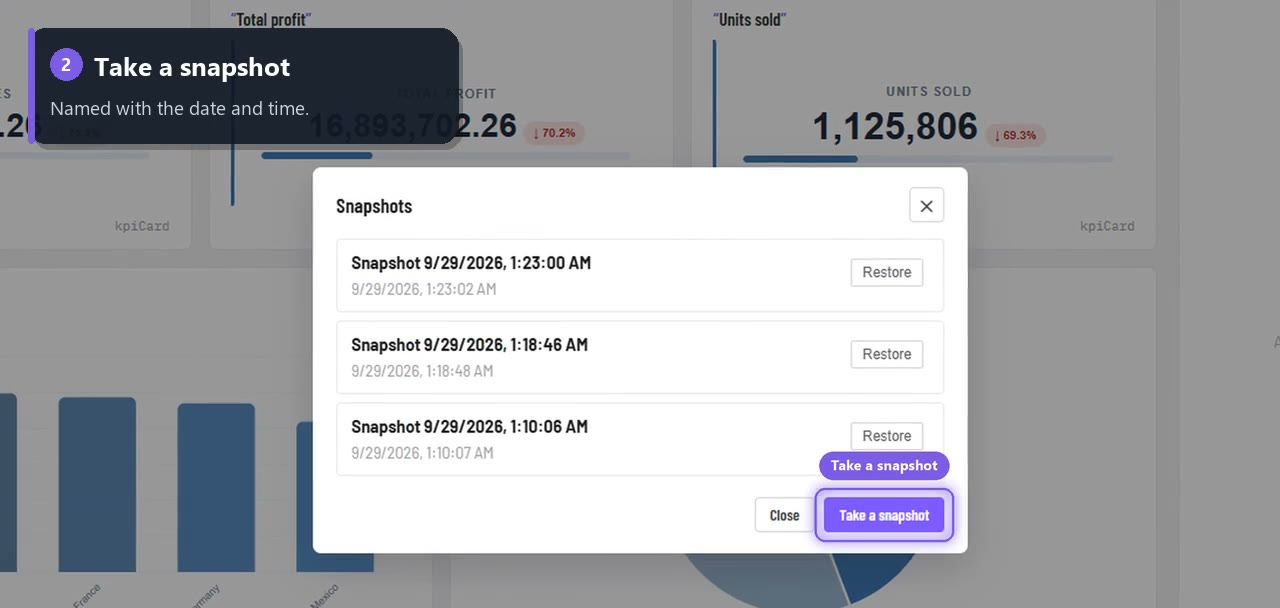
Every snapshot stays in the list, so this month's close sits next to last month's.
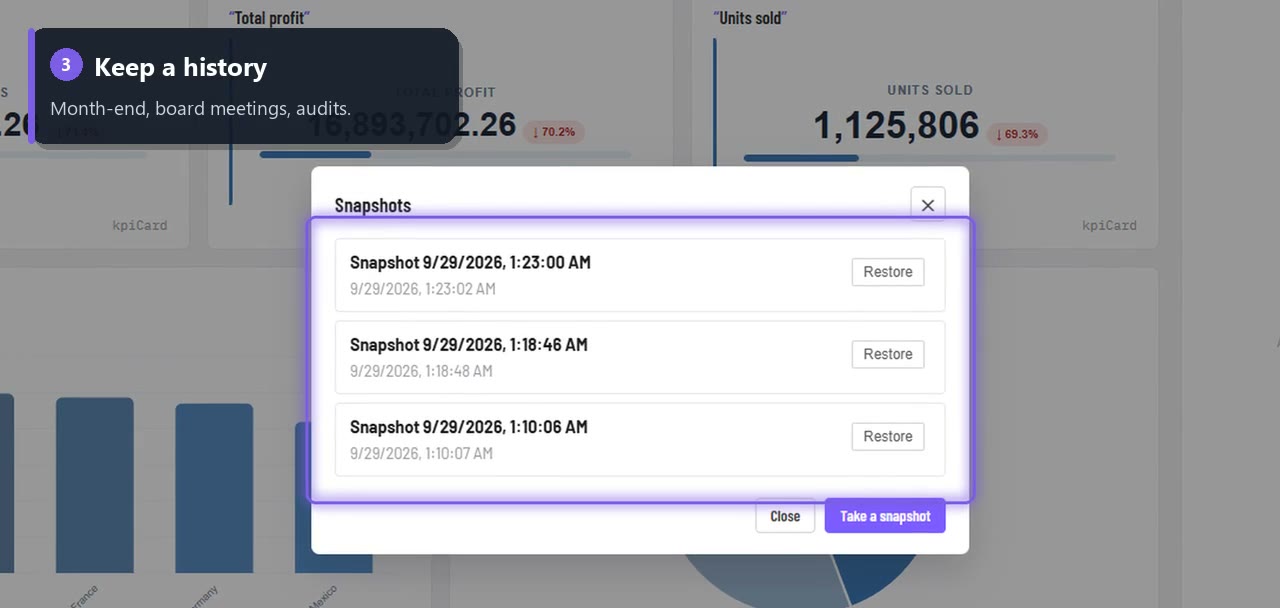
When to take one
| Moment | Why |
|---|---|
| Month-end and quarter-end | The numbers you closed on, kept for good |
| Before a board or investor meeting | Show exactly what was presented |
| Before a redesign | Experiment freely and go back if needed |
| Audits | A clear record of what was reported, and when |
Bring any version back
Need that exact version again? Choose Restore next to it. Restoring replaces the report's current layout, so you're asked to confirm first. Tip: snapshot today's version before you restore an older one.
A simple month-end routine
- On the last working day, refresh the report and check the numbers.
- Take a snapshot and name the moment in your notes ("September close").
- Export a PDF for the board pack if you need a file.
- Share the live link for everyone who wants today's view.
Start your reporting history
Connect your data, describe the report, and take your first snapshot. Your first report is free, with no credit card.
Build your first report free →
Full guide: Report snapshots · Video: Snapshots in 41 seconds