A Power BI-style data model and DAX measures, right in your browser
Real questions rarely live in one table. Sales by region needs the sales table and the table that says which country is in which region. Margin by segment needs a formula, not a column. Until now that meant a desktop tool, a data model file and someone who knows DAX.
Report Studio now does it in the browser: several datasources in one report, relationships between their tables, combined tables, and DAX-style measures and calculated columns.
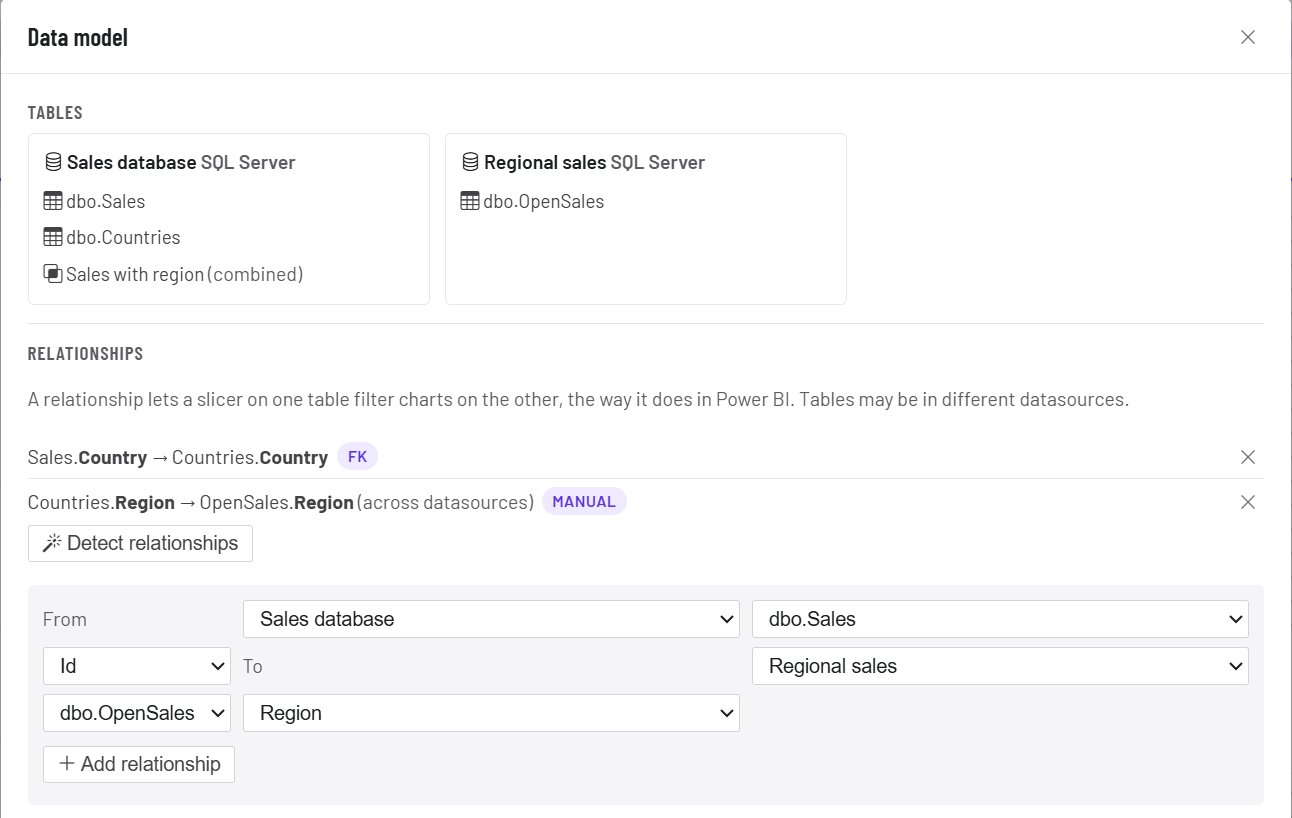
One report, several datasources
Add any datasource from the same workspace to a report, then choose for each chart which datasource and table it reads. Your SQL database, an Excel export from finance and a CRM's REST API can sit on one page.
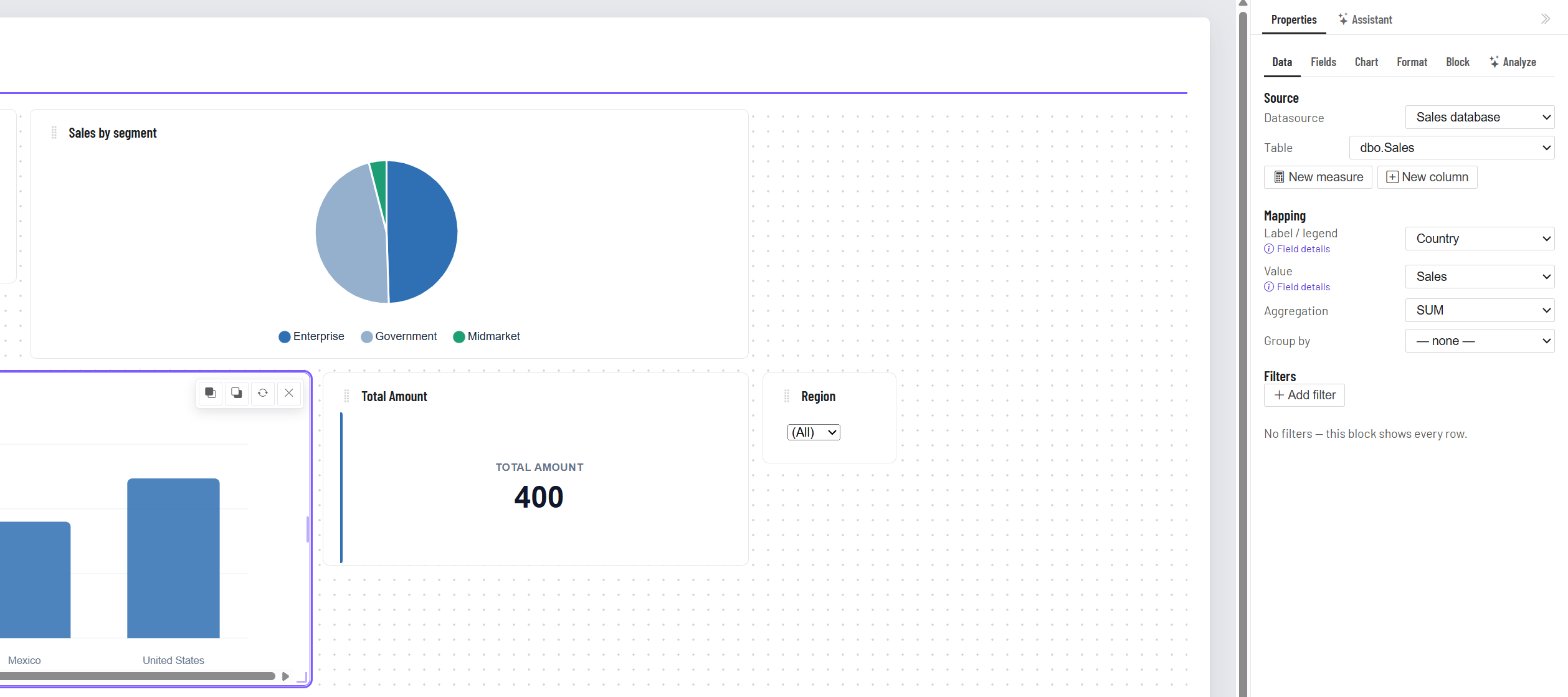
Relationships: one slicer, every chart
Tell the report that Sales.Country matches Countries.Country, or let it detect the relationships your SQL database already declares. Now a slicer on Region = North filters the sales chart to Canada and Mexico, even though Sales has no Region column. Relationships can even cross datasources: a region list in SQL can filter an Excel sheet.
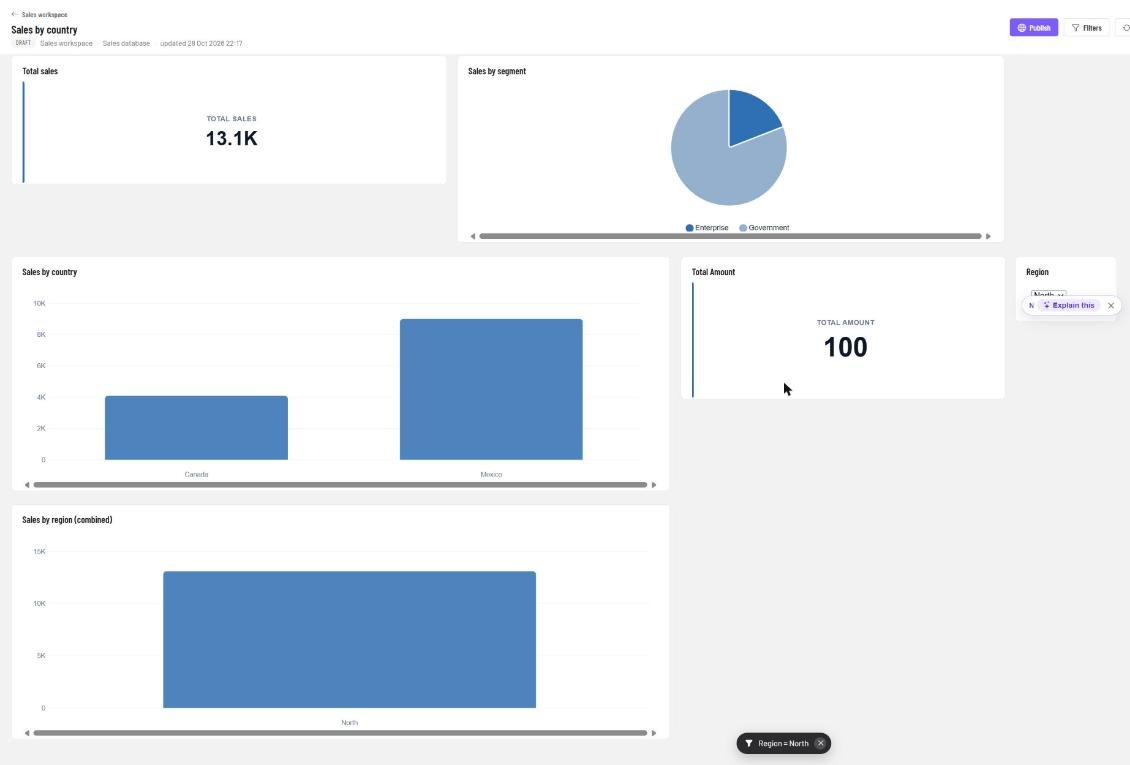
Charts on tables that aren't related are left alone, instead of breaking on a column they don't have.
Combined tables
Need both tables in one chart? Combine two tables of the same SQL datasource into one, keeping all rows of the first or only the matches, and pick it like any other table. Sales with region gives you Sales by Region in two clicks.
DAX measures, tested before they're saved
Write the numbers your data doesn't have as measures, in the same formula language as DAX and Excel:
Total Profit = SUM([Profit])
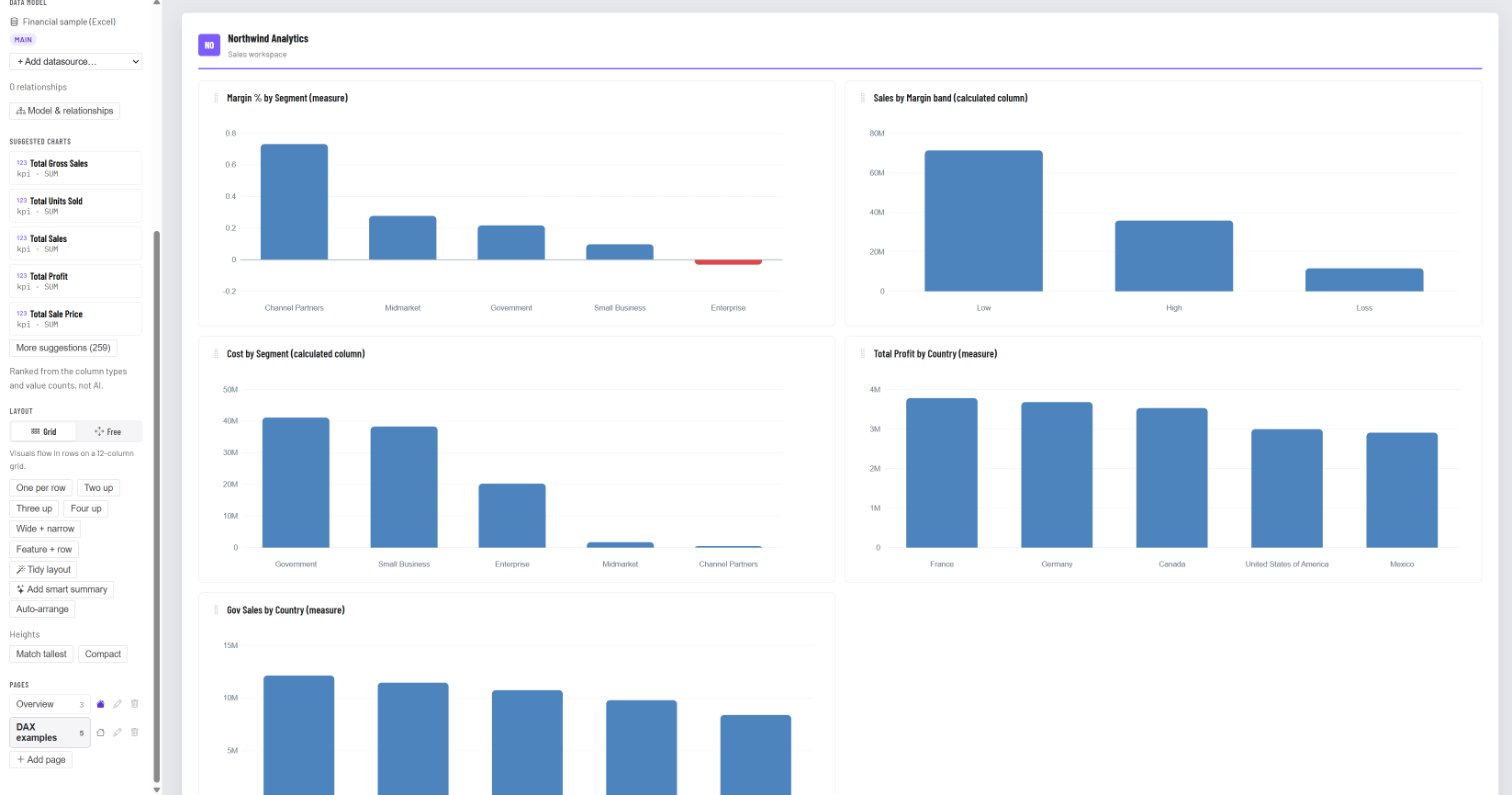
Margin %     = DIVIDE([Total Profit], SUM([Sales]))
Gov Sales    = CALCULATE(SUM([Sales]), [Segment] = "Government")
Each measure is worked out for every bar, slice and card from the rows behind it, so Margin % by Segment shows each segment's own margin, and the loss-making one goes below zero.
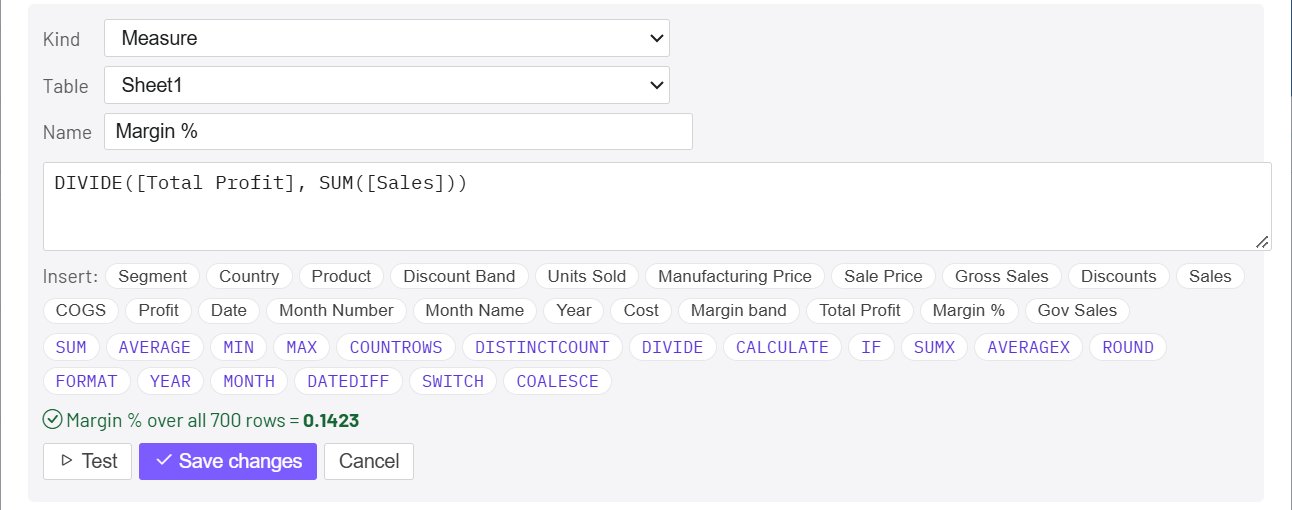
Select Test and the formula runs on your real rows before you save it. A typo, a column outside an aggregate ([Sales] instead of SUM([Sales])) or two measures that use each other gets a plain-English message instead of an empty chart.
Calculated columns
Add a value to every row: Cost = [Sales] - [Profit], or a band like High / Low / Loss with IF. Use it as a chart's label, its value, a table column or a filter.
Same security as every chart
Nothing is copied into a model file. Every chart still reads its own datasource with the reader's permissions, so row-level security, slicers and filters apply to measures and related tables exactly as they do elsewhere. A report can only use datasources from its own workspace.
Try it
Open any report, switch to Edit, and look for Data model in the left rail. The guides walk through it:
- Report data model: several datasources, relationships and combined tables
- DAX measures and calculated columns
Your first report is free: no credit card, no time limit.